Polarity
In “Polarity” item, [left/right] key to switch “Auto / H
/ V” functions.
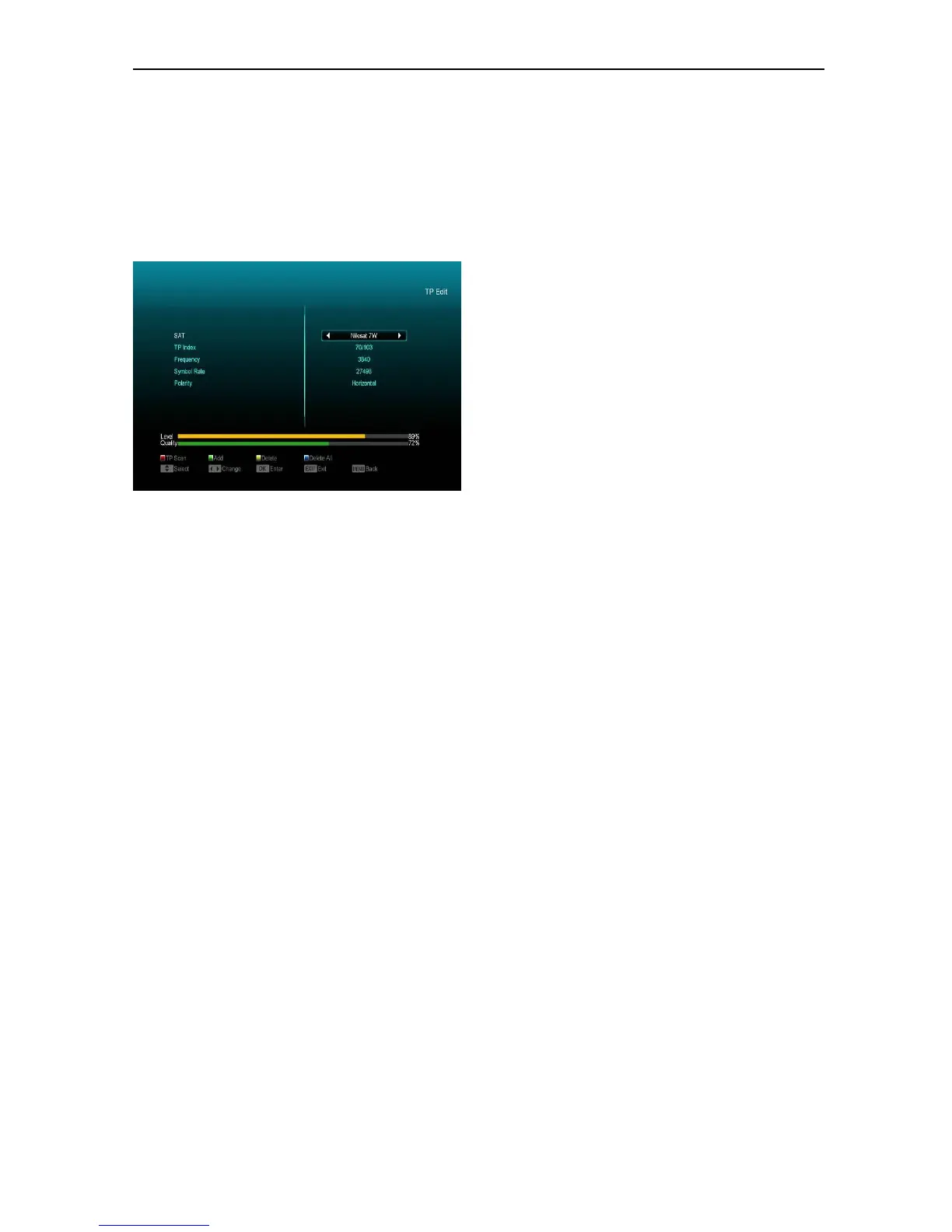
TP Edit
When you enter “TP Edit” menu, there will display
the screen like below:
1 In “Satellite” item, press [left/right] key to switch
satellite that you want to scan or press[OK]key
to enter satellite list for selection.
2 In “TP Index” item, you not only can use
[left/right] key to select transponder but you can
also use[Add] and [Delete]functions.
When you press[Green] key, it will display
“New TP” in “TP Index” item; You should set
the parameters of “TP Frequency” and
“Symbol Rate” for this new transponder. The
parameters of “TP Frequency” and “Symbol
Rate” can set using numeric keys. The
available range are “3000~13450 MHz” and
“1000~45000Ks/s”.
When you press[Yellow] key, there will show
up a warning message for reminding whether
you want to delete the current transponder or
not. If you select “Yes”, the current
transponder will be deleted, and the total
account of transponder will reduce 1
correspondingly.
When you press [Blue] key, it will display a
warning message for reminding whether you
want to delete all transponders or not. If you
select “OK”, all transponders will be deleted.
3 For the existing transponder, you can also
use numeric keys to modify the parameters of
“TP Frequency” and “Symbol Rate”.
4 When you complete your modification, press
[Red] key, it will display a dialog asking the
scan mode, program type, scan type and NIT
Search on/off. After you set up, press [OK]
key to start scanning.
5 In the “TP Scan” item, press [Exit] key to exit
the scanning and save the current
parameters.
Single Scan
1 Press [Red] key, it will display a dialog asking
the scan mode (means you want to scan all
channels or only scan free channels),
program type (means you want to scan all
channels or only scan TV/Radio channels),
scan type (means preset scan, that is
searching the existed TP. Automatic Scan
means blind scan. There is no need for
existing TP info) and NIT Search on/off. After
you set up, press [OK] key to start scanning.
2 Press [White] key into the blind scanning
immediately.
TP Scan
Press [Green] key to scan current TP’s programs.
Auto DiSEqC
Press [Blue] key to run Auto DiSEqC function, it
can find satellite connection ports automatically.
Blind Scan
Press [White] key take you directly into blind scan
mode to scan the current satellite.
Select satellites
When you Press [SAT] key, you will see the screen
like below:
1 You can press [ok] button to select one or more
satellites and then press [red] button, it will show a
dialog asking scan mode, program type, scan type


 To Next Page