1 Select the satellite and TP or input the TP value and
download PID, these parameters you can get from
your provider.
2 Then move the highlight to the start button and press
[OK] button to start upgrade.
12.4 Upgrade By USB
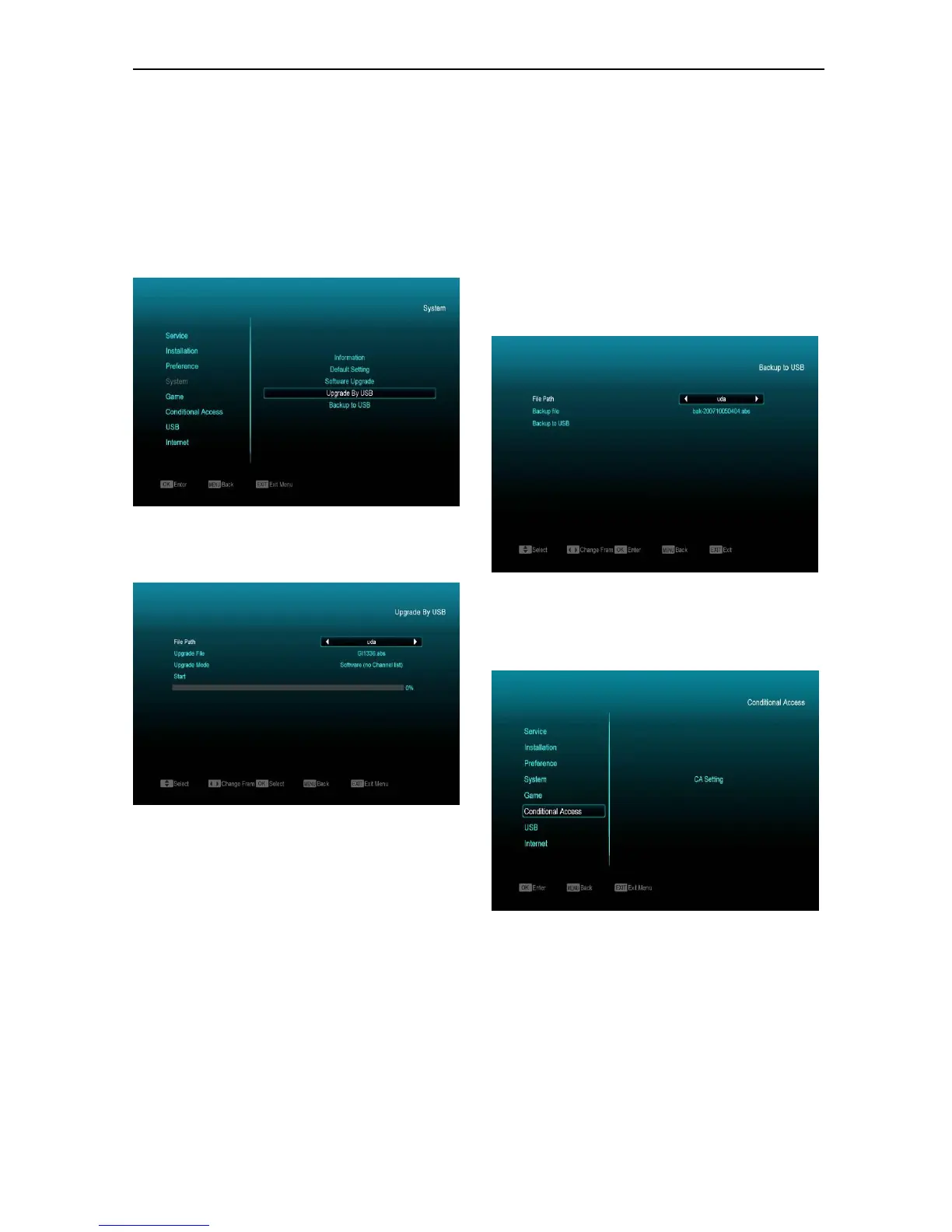
In this menu you can upgrade the software from USB
conveniently, Press “Left/Right” button select
USB; press ' OK ' button to enter.
In this menu you can select the Upgrade Mode among
Software(No channel list), Channel list, All
SW+bootloader and All SW+Channel list, and you can
select the appropriate upgrade file on "Upgrade File"
item. After you select the "Upgrade Mode" and "Upgrade
File", press ' OK ' button on "Start" item, the receiver can
upgrade automaticlly
.
Note:
You must put the upgrade file on the /ROOT
DIRECTORY of the USB storage.
12.5 Backup to USB
In this menu ,you can dump the software to the
USB equipment
1 In "Backup file",you can press [OK] key to edit
the file name.; Press “Left/Right” button select
USB A or USB B;
2 In "Backup to USB", you can press [OK] to start
backup software .
13. Conditional Access
13.1 CA Setting
We provide one CA slots for users use. Receiver
has build in smart card module with CONAX
system. By using cards in this system provided by
operators, it is possible to watch many scrambled
channels coded in this system. This menu shows
detailed information about card inserted into card
reader module. It allows inserted according to help
messages visible on the bottom of the screen.


 To Next Page