system will just decode AC3 or LPCM to be LPCM
and then output.
Service Switch Mode: Press [left/right] button to
select unblank or blank.
Press [MENU] key to draw back from “AV
System” menu.
11.6 Miscellaneous Settings
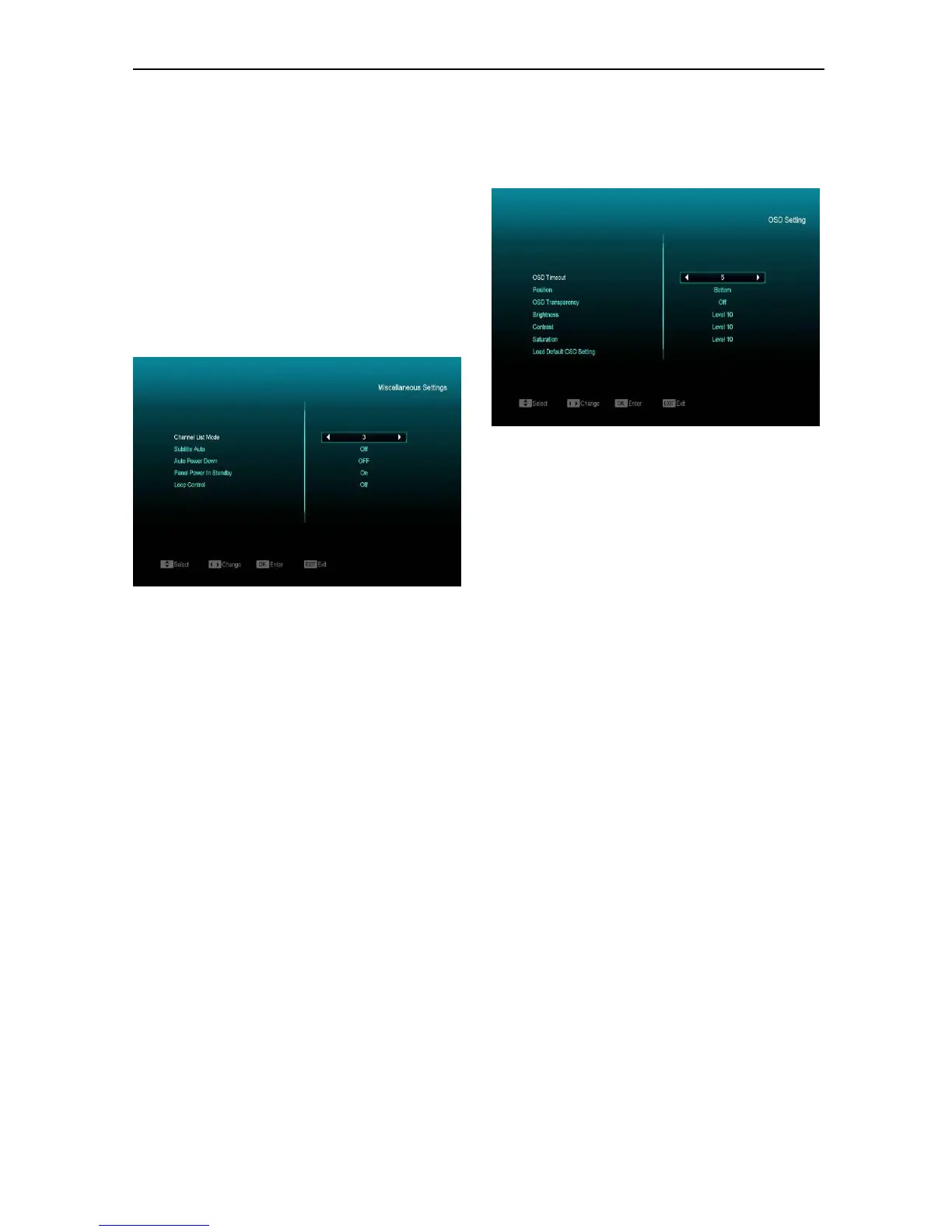
When you enter “Miscellaneous Settings” menu,
you will see a screen like below:
1 Channel list num: This item provides below
options: 1/2/3,you can press [Left/Right] key to
select each mode circularly.
2 Subtitle Auto: You can press [Left/Right] key to
select “On” or “Off”. If the current channel has
subtitle information, it will be showed automatically
while this function is “ON”, if this function is “OFF”,
you need turn on the subtitle manually by pressing
[SUBTITLE] key.
3 Auto Power Down: You can press [Left/Right]
key to select the time or “Off”, if you select time,
duration this time if no any operation on receiver, it
will go to standby mode.
4 Standby mods: if set to “Real”, Press power key
receiver will be in real standby status, the
consumption will less than 0.5 Watt. if it’s set to
“Fake” ,Press power key, receiver will be in fake
standby status.
5 Screen protect: You can press [Left/Right] key to
select the time or “Off”, if you select time, Radio
full-screen playback duration this time if no any
operation on receiver, it will go to Screen protect
6 Press [MENU] key to draw back from
“Miscellaneous Settings” Menu.
11.7 OSD Setting
When you enter the “OSD Setting” menu, you will
see a screen like below:
1 OSD Timeout: When you switch channels in
full screen, there will display information
about current channel on the lower part of the
screen. Regarding the duration this
information is displayed on the screen, you
can press [left/right] key to set the time. The
range of the duration is “1 second ~
10seconds”.
2 OSD Position: control display position of the
info bar in full screen mode. You can choose
“bottom” or “top”.
3 OSD Transparency: Besides the setting of
“OSD Menu Style”, you also can set the
transparency of OSD. You can press [left/right]
key to select the value. There are 5 levels of
transparency, 10%, 20%, 30%, and 40% and
“OFF” (means no transparency function).
4 Brightness/Contrast/ Saturation : You can
adjust the parameter about the Video image
by using the [OK]button or press [left/right]
key, the default value is Level 10.
5 Load Default OSD Setting : If you are not
satisfied with your setting, you can highlight
this item and press [OK] key to reset
parameters as default value.
6 Press [MENU] key to draw back from the
“OSD Setting” menu.


 To Next Page