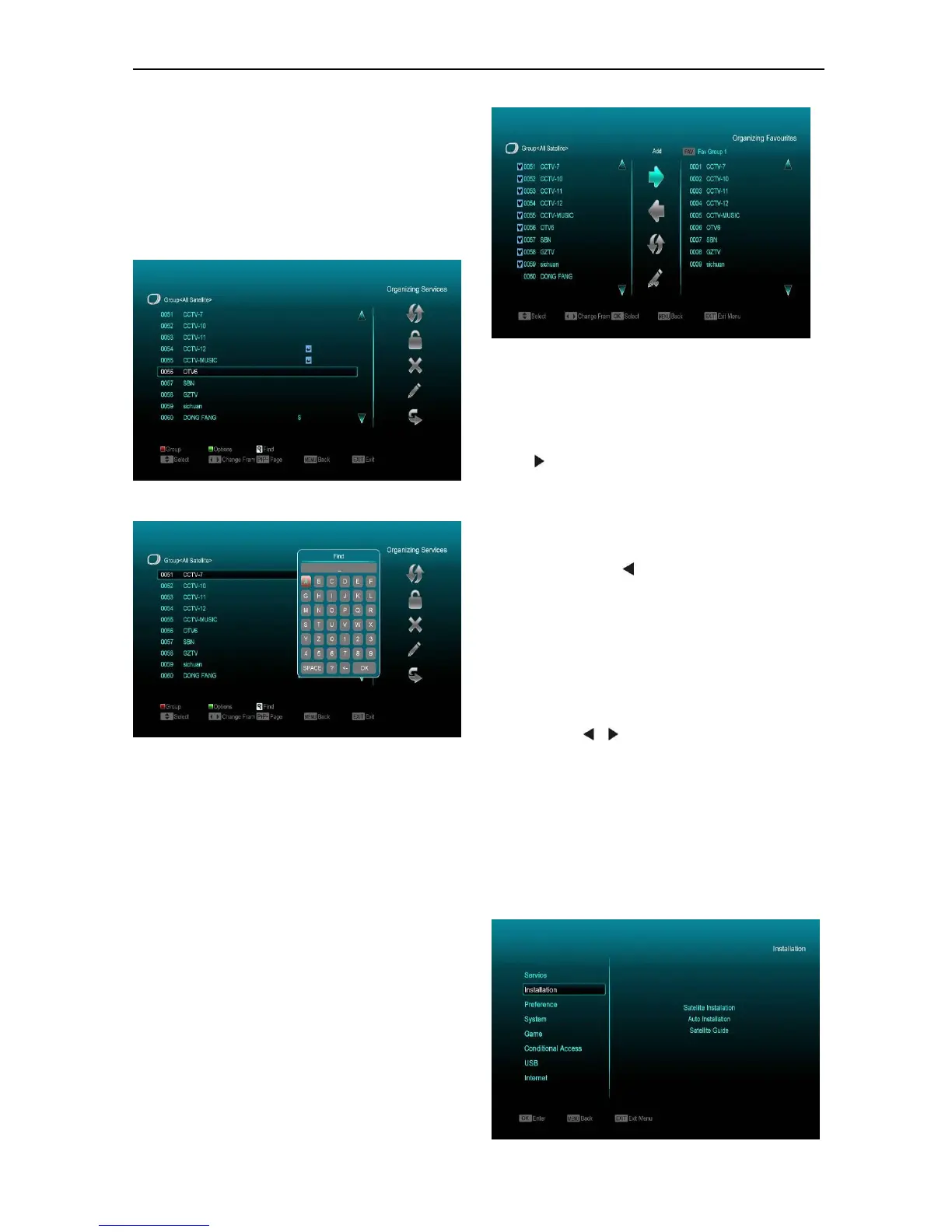
3 Select Delete icon by pressing [Channel
Up/Channel Down] key and [OK] key.
4 Delete the channel by pressing [OK] key.
Skip and rename
Follow the same way you can set the channel’s
Skip or rename for highlighted channel.
Find
1 Press [Find] key can open the “Find” window
like above. You can press [Channel
Up/Channel Down/Volume Up/Volume Down]
key to move highlight and press [OK] key to
input the selected symbol or letter into the
dialogue.
2 After input each character, the program list on
the left will search the channel according to
your input, and list the matched channel.
3 Move highlight to “OK” and press [OK] key to
close “Find” window and you can select
channel from the channels list directly.
9.2 Organizing Favourites
This menu is helpful in adding and deleting
services to and from the favorite group.
1 FAV List
Choose the FAV List by pressing “FAV” button.
2 Add
To add services into favorites, mark the desired
services by pressing “OK ” button in Service List,
press to choose Add mode and press “ OK ”
button.
3 Remove
To remove services from favorites, mark the
desired services by pressing “OK ” button in
Favorite List, press to choose Remove mode
and press “ OK ” button.
4 Move
You can reorder and move the service to the
preferred position in Favorite List.
5 Rename
Select the desired FAV List by pressing “FAV”
button, using , buttons to choose Rename
mode and press “ OK ” button to display keyboard,
and rename it.
6 Group, Options and Find functions
Please refer to the “Organizing Services” part in
this manual.
10. Installation


 To Next Page