www.amulethotkey.com | 11
5. Installing Mouse Point
The Mouse Point utility enables users to switch channels on the
K4u
+
using their mouse. For convenience and ease of
maintenance, Mouse Point also incorporates features for
updating the firmware on K4u
+
switches and managing
screensavers on attached computers. (Administrators can
specify which features are available to ordinary users.)
5. 1 Requirements for host PC
You must install Mouse Point on at least one PC attached to the
K4u
+
. This your host PC. You can then run the Mouse Point
Configuration utility on the host PC to create a configuration file
that you upload to the K4u
+
.
Note the following requirements:
■ Operating System: For Mouse Point 2.10, the host PC must
be running Windows XP or later. 32-bit and 64-bit systems
are both supported.
■ Attaching and removing the host PC: The Mouse Point host
PC does not need to be permanently attached to the K4u
+
.
You can remove the host PC after uploading the Mouse Point
configuration file to the K4u
+
. For example, you may find it
convenient to use a laptop as your host PC, temporarily
attaching it to K4u
+
units as required.
5. 2 Run the Mouse Point installer
1 Download the zip file containing the Mouse Point installer.
The zip file is available on the Support > Downloads page of
the Amulet Hotkey website, www.amulethotkey.com.
2 Extract the Mouse Point installer from the zip file. The
installer is contained in an executable:
Mouse_Point_2_10.exe
3 Copy the Mouse Point installer to the host PC.
4 On the host PC, run Mouse_Point_2_10.exe.
5 Step through the various installer screens.
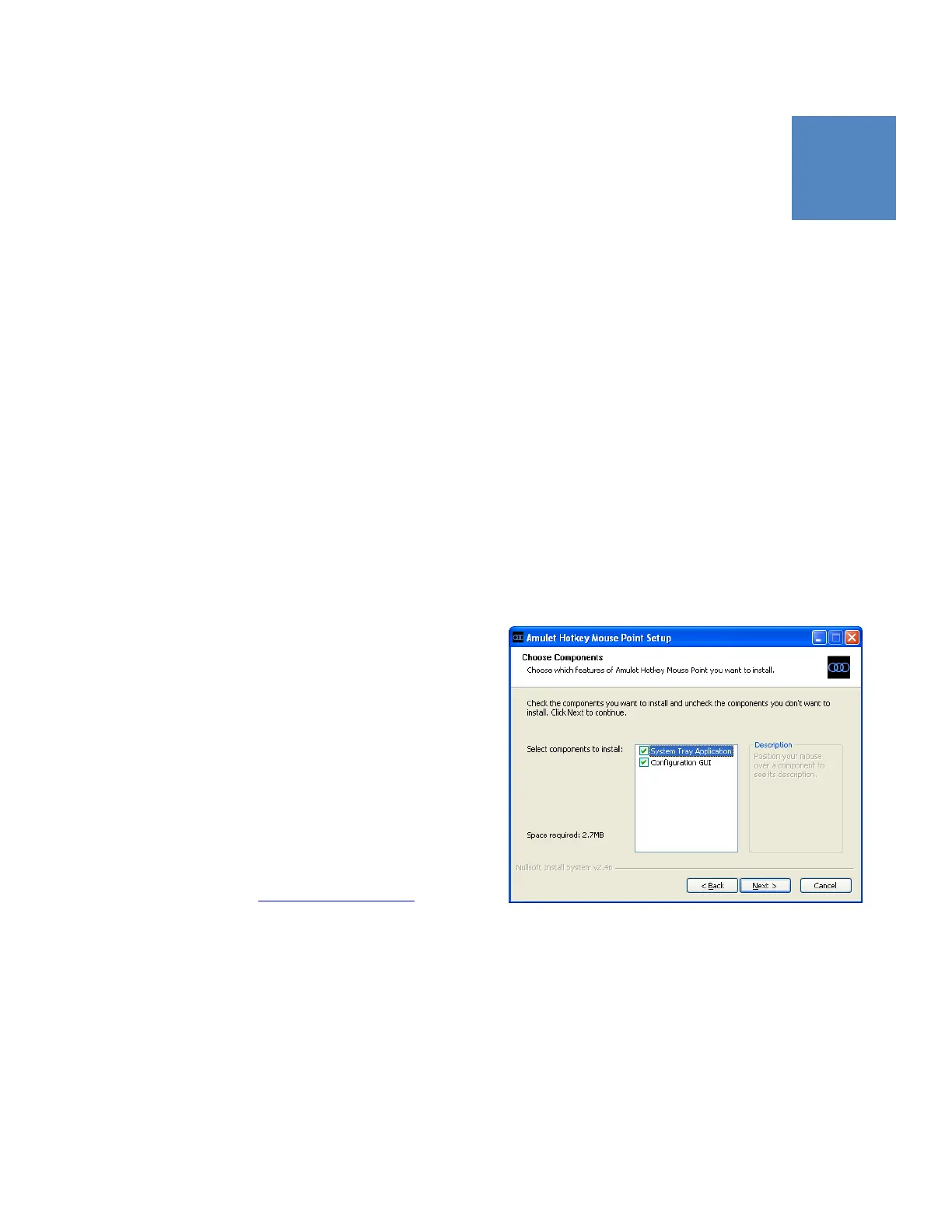
6 In the Choose Components screen, confirm that the
following components are selected:
● System Tray Application: You must install this
component. It enables you to configure Mouse Point
features, including channel changing with a mouse,
firmware updates, and screen saver management.
● Configuration GUI: This component installs the Mouse
Point Configuration utility. Use this utility to specify how
a user’s screens are arranged in relation to each other.
This utility also allows you to enable SaverSync, a screen
saver management feature, and the Remember Last
Channel feature, which enables the K4u
+
to remember
the last active channel and the hot-plug focus after the
unit is reset or power cycled.
Mouse Point installer, Choose Components screen
7 In the Choose Registry and Service Options screen, verify
that the following options are selected:
● Ignore K4u serial numbers…
You do not normally need to change this setting. Unless
instructed otherwise, keep this check box selected.
By default, Mouse Point host PCs do not check K4u
+
identifiers. This allows users to reattach computers to
K4u
+
units without triggering unnecessary mouse and
keyboard driver operations. This check box cancels the


 To Next Page