www.amulethotkey.com | 29
Amulet Hotkey K4u
+
Manual
5 In the Locate Package dialog, select the .pkg file containing
the firmware package.
6 In the resulting ‘Auto-Switch’ dialog, confirm the package
details. If the details are correct, click Yes to start the update.
7 When the update completes, the results are written to the
local and remote log files. See section 6. 7.
8 (Optional) Confirm that the firmware version has been
updated on the K4u
+
. To do this, click Read Switch Status via
USB to display the Status dialog.
8. 3 Remote manual updates (USB)
This section describes how to run a one-shot firmware update
for a specific K4u
+
by remotely configuring the source computer.
One-shot updates are useful if, say, you want to test a new
firmware release before rolling it out across your organization.
Note:
When applying a firmware update, Mouse Point does
not check the firmware version being overwritten. Therefore,
we recommend that you temporarily disable scheduled
firmware updates on the source computer before applying a
one-shot firmware update. If you do not, there is a risk that
the next scheduled update will overwrite the one-shot update
with the previous version of firmware.
To run a remote manual update:
1 Verify that the Remote Registry service is running on the
remote source computer.
2 Save the .pkg file containing the firmware update to a
convenient location. This can be a folder on the source
computer or a network share.
Note:
Do not save this one-shot update file in the same
folder as your scheduled update package files.
3 Connect to the registry on the remote source computer.
For example, you can use the Connect Network Registry
feature in the Registry Editor.
4 In the remote registry, locate this registry key:
HKLM\Software\Amulet Hotkey
\USB updating config
5 In this registry key, edit the following registry value:
OneShotUpdateFilename
Set this value to the full UNC path and file name of the .pkg
file containing the firmware update. For example:
\\UNX-NY-01\Amulet Hotkey\Test\k4u0P333.pkg
6 In the remote registry, locate this registry key:
HKLM\Software\Amulet Hotkey
\USB updating results
7 In this registry key, edit the following registry value:
oneShotUpdateResult
Set this registry value to 1. This registry change alerts Mouse
Point on the source computer that a firmware update is
required.
8 Click away from the oneShotUpdateResult registry value.
For example, you can close the Registry Editor.
The firmware update starts in around 10 seconds.
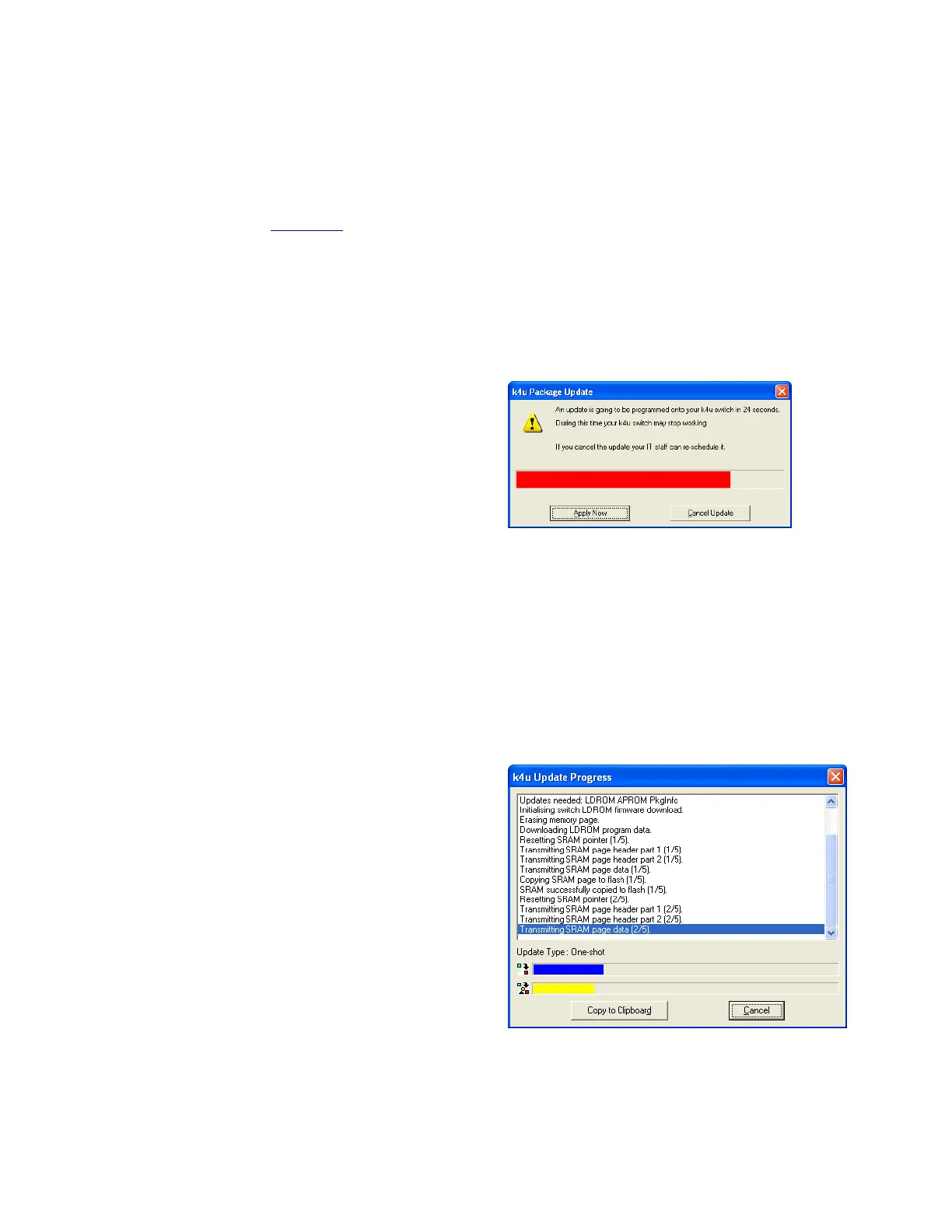
9 When the update starts, a warning dialog displays a
30 second countdown. This allows any user currently
working on the source computer to cancel the firmware
update.
Package Update warning dialog
10 After the update starts, the Update Progress dialog displays.
When the update completes, the final message reads
“Package copied successfully”.
Note:
Users can optionally copy the progress messages to
the clipboard, for example, for diagnostic purposes.
Important!
Users can also optionally cancel the update
while it is in progress. However, doing so may leave the
K4u
+
in an unstable state.
Update Progress dialog


 To Next Page