www.amulethotkey.com | 14
Amulet Hotkey K4u
+
Manual
5. 4 Mouse Point menu
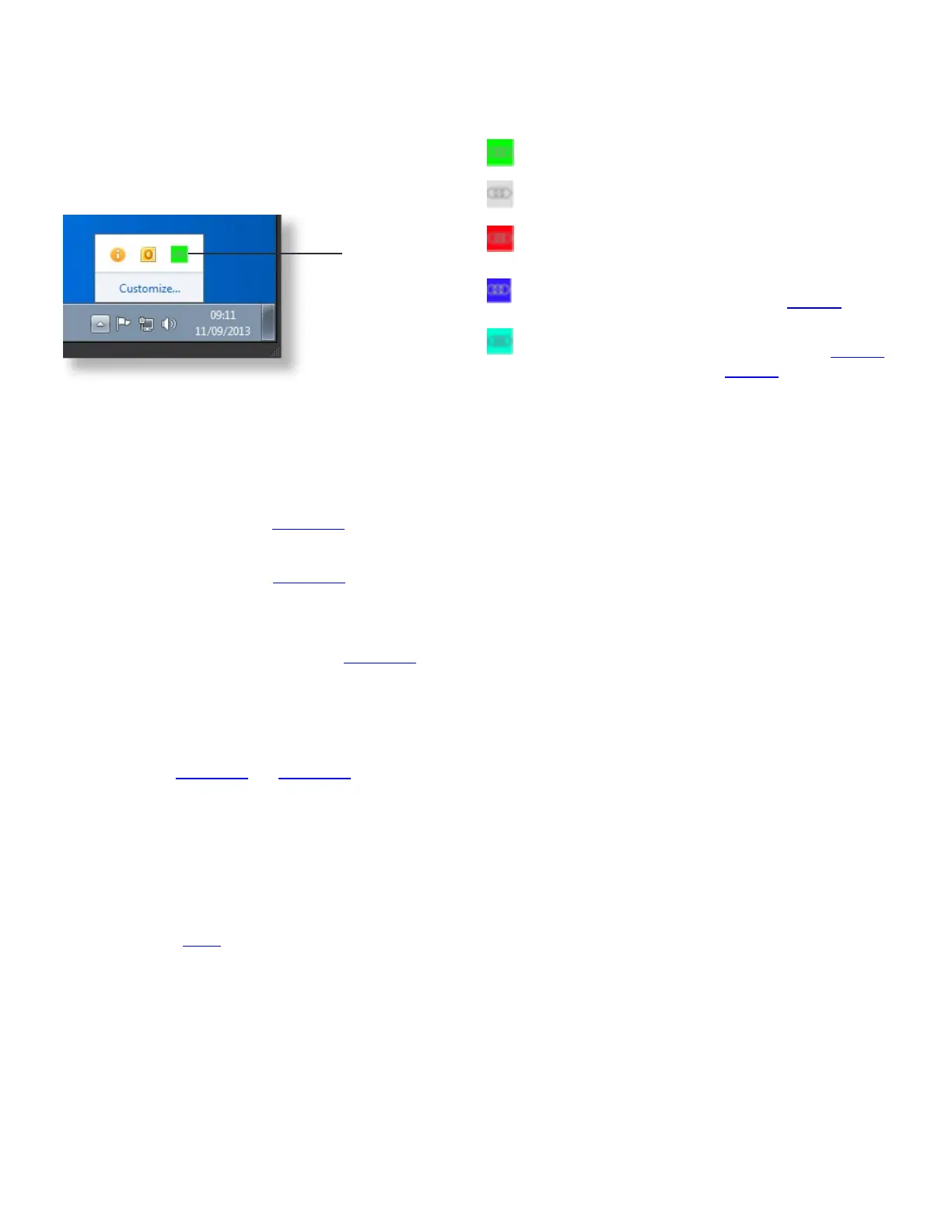
After installing Mouse Point, a Mouse Point icon is displayed in
the system tray (Windows XP) or taskbar notification area
(Windows 7) of the host PC. Right-click this icon to display the
Mouse point menu.
Mouse Point icon (1) in taskbar notification area
5.4.1 Menu items
The Mouse Point menu gives you access to various configuration
and firmware update options. It includes the following items:
About
Displays the About dialog. See section 6. 6.
Read Switch Status via USB
Displays the Status dialog. See section 6. 6.
To optionally disable this menu item, see section 5. 5.
Update Switch Firmware and FPGA via USB
Manually updates the K4u
+
firmware. See section 8. 2.
To optionally disable this menu item, see section 5. 5.
Launch Mouse Point Configuration
Opens the Configuration utility. Use this utility to set up
channel changing with your mouse pointer and to enable
SaverSync. See section 6. 2 and section 6. 3.
Customize Monitor Arrangement
Allows administrators to specify non-standard screen
arrangements. Only choose this menu item under the
guidance of Amulet Hotkey technical staff.
Update Mouse Point Configuration
Uploads a Mouse Point configuration file from the host PC
to the K4u
+
. See step 4 in section 6. 2.
Read Mouse Point Configuration
Downloads the current Mouse Point settings from the K4u
+
to a .k4c configuration file. You can then edit the settings
using the Configuration utility or, if required, upload the
configuration file to a different K4u
+
.
Close
Closes the Mouse Point application in the system tray
(Windows XP) or taskbar notification area (Windows 7).
5.4.2 Icon colour
The Mouse Point icon colour indicates its status:
Green: This PC has the K4u
+
focus.
Gray: This PC does not have the K4u
+
focus. Or this
PC is not attached to a K4u
+
.
Red: There is a major problem with the USB
connection to the attached K4u
+
.
Blue: A manual firmware update (initiated on this
PC) is underway on the K4u
+
. See step 8. 2.
Cyan: A remote firmware update is underway on
the K4u
+
. This may be a manual update (step 8. 3)
or a scheduled update (step 8. 4).
5. 5 Disable Mouse Point menu items
The Mouse Point menu includes items for launching firmware
updates on the attached K4u
+
. However, ordinary users can
access this menu, so you may prefer to disable the following
menu items:
■ Read Switch Status via USB
This menu item displays the Status dialog. This dialog shows
status and firmware details for the attached K4u
+
. This data
is primarily of interest to administrators.
■ Update Switch Firmware and FPGA via USB
This menu item allows users to manually update the K4u
+
firmware. However, you can disable this item to ensure that
any firmware updates are managed in a controlled and
co-ordinated manner.
You can configure the Mouse Point installer to disable these
menu items automatically. Alternatively, you edit the registry on
the host PC to manually disable these menu items after
installing Mouse Point.
5.5.1 Configure the Mouse Point installer to disable
menu items automatically
To configure the Mouse Point installer to disable these menu
items automatically, add the following lines to install.cfg. Then
run the installer from a command line:
usbStatusUploadDisabled Yes
usbPackageDownloadDisabled Yes
5.5.2 Manually disable menu items on the host PC
To disable the Mouse Point menu items:
1 Log on to the Mouse Point host computer as an
administrator.
2 Locate the following registry key:
HKLM\SOFTWARE\Amulet Hotkey\USB updating config
1


 To Next Page