www.amulethotkey.com | 23
7. Using the K4u
+
This section explains the key operations that end users need to
know when using computers attached to a K4u
+
. These include:
■ Changing channels
■ Hot plugging a USB device to an attached computer
■ Setting up audio
■ Using smart cards
■ Cascading K4u
+
switches to control up to 16 computers
■ Sharing a computer between two users
7. 1 How to change channels
The primary function of the K4u
+
is to switch a single mouse and
keyboard between several attached computers. The K4u
+
provides several simple methods for users to select which
computer is the focus of keyboard and mouse activity. These
methods are covered in the following sections.
Optional focus LEDs are available to visually indicate which
channel has mouse and keyboard focus. For details, see item 6
in section 2. 2.
Note:
The K4u
+
can directly support up to four computers,
each attached to a channel on the K4u
+
. When this manual
refers to changing channels or changing the focus of
keyboard and mouse activity, these are equivalent terms that
mean the same. They both refer to switching the K4u
+
from
one attached computer to another.
7.1.1 Hot keys
To change channels with hot keys, do one of the following:
■ Hold down the hot keys and press 1, 2, 3, or 4 on the
QWERTY section of the keyboard to change directly to a
channel.
■ Hold down the hot keys and press 4 or 6 on the numeric
keypad to cycle around the channels.
■ Press the Scroll Lock key twice in quick succession to change
up a channel. (You do not need to hold down the hot keys.)
Hot keys are described in section 4.
7.1.2 Mouse Point
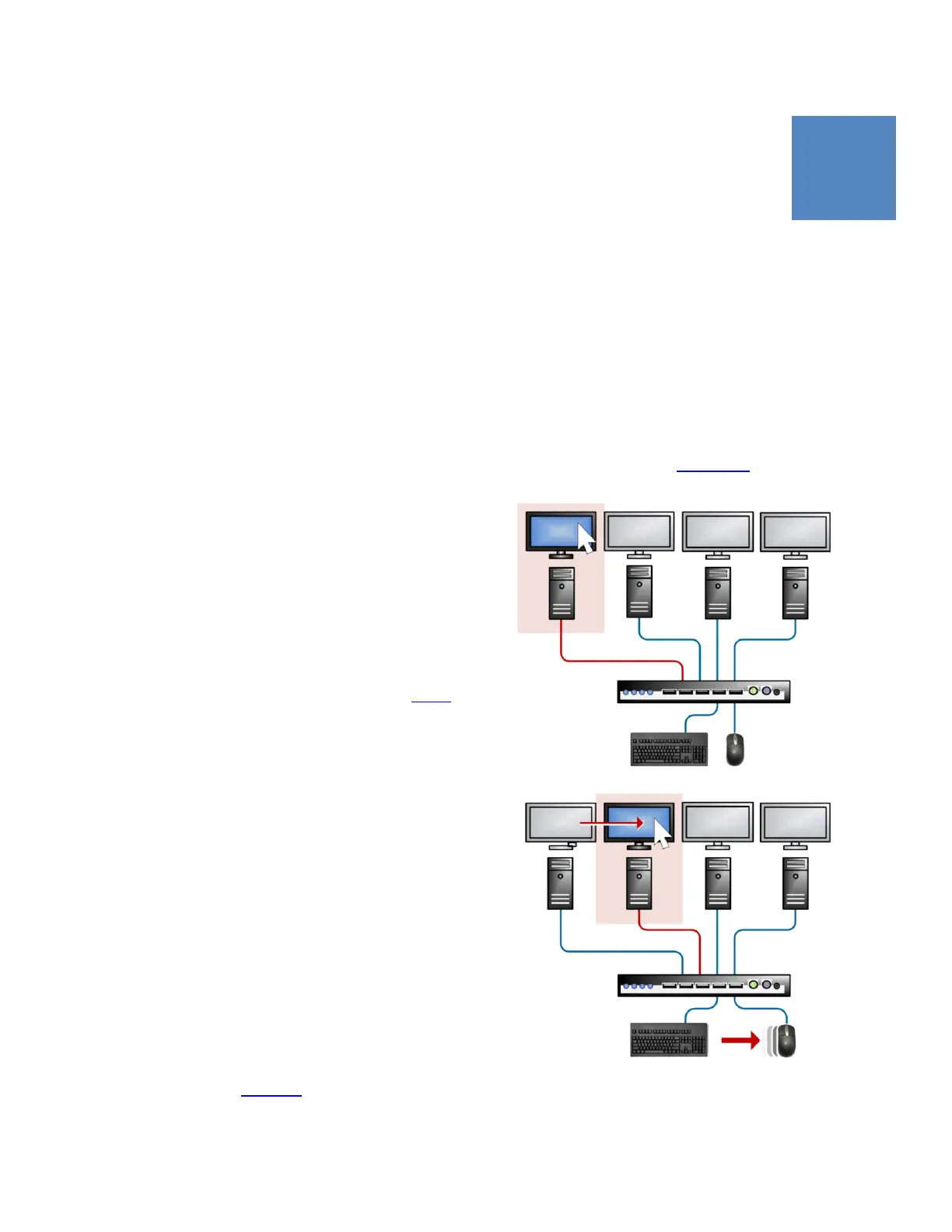
Mouse Point® is an intuitive secure system for changing
channels on the K4u
+
using your mouse. The location of the
mouse pointer on the active screen acts as a trigger for channel
changes. It allows you to drag your mouse pointer from one
screen to another, causing the mouse and keyboard focus to
follow your mouse pointer. Setting up channel changing by
mouse pointer is described in section 6. 2.
1
A B C D
2 A B C D
Changing channels with Mouse Point. In this example, a user
drags the mouse pointer from screen A to B, so changing the
focus from computer A to B.


 To Next Page