www.amulethotkey.com | 5
2. Your K4u
+
at a glance
The K4u
+
has various LEDs and connections on the front and
rear panels. These are described below.
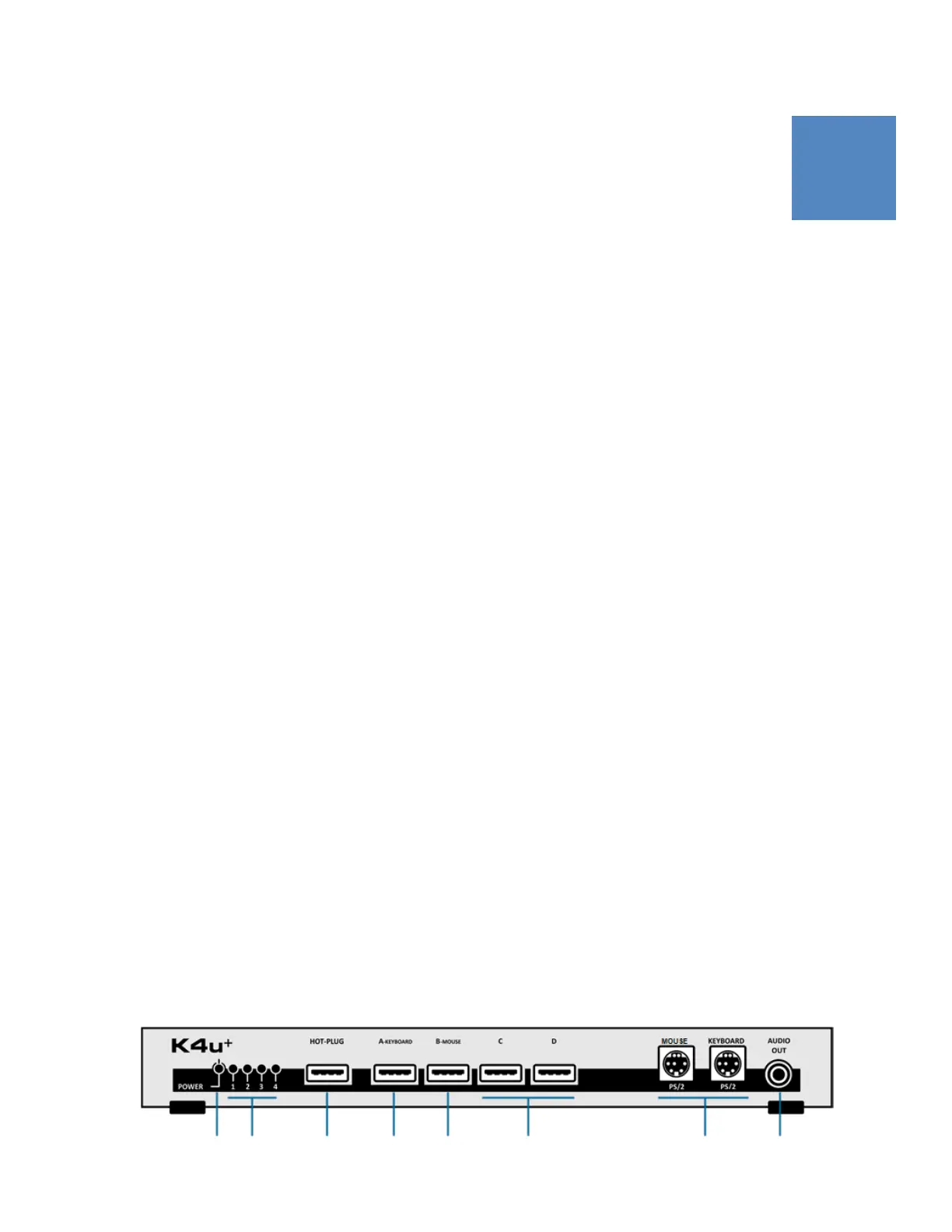
2. 1 Front panel
1 Power LED
This LED illuminates when power is applied to the unit.
Power can be drawn from the supplied PSU or from any of
the connected computers. For best performance, especially
when using USB peripherals with a high power requirement,
or the Bloomberg Keyboard 4 (STB100), always use the
external PSU. It is also good practice to power a KVM switch
from a UPS.
2 Channel status LEDs
These are multi-coloured LEDs. If a channel LED is:
Blue The computer on this channel is connected using
the USB protocol.
Green The computer on this channel is connected using
the PS/2 protocol.
Red The computer on this channel is connected using
the legacy Sun™ protocol.
Pink The computer on this channel is powered off, or
No computer is attached to this channel, or
The computer on this channel is using an
unknown protocol, or
No protocol has been detected yet on this
channel.
Flashing The audio feed from this channel is muted.
3 Hot-plug port
Use this port to connect un-hosted USB devices (such as a
printer or memory stick) to an attached computer. This
connection passes through the K4u
+
to the rear panel USB
socket for the selected channel, where it is merged with any
keyboard and mouse data present. Support for the hot-
plugged device is provided directly by the attached
computer, which loads the appropriate drivers when the
device is detected and identified. You can configure the
hot-plug port for automatic or manual channel switching.
For example, you can set it up to automatically follow the
keyboard and mouse focus.
Note:
The hot-plug port can only connect to one K4u
+
channel at a time.
4 USB keyboard socket
Use this socket to connect a USB keyboard. Most types are
supported but be aware that some devices have unusual
special function keys that only work with custom drivers.
These devices are not fully supported. Always test the
keyboards you intend to use during the POC stage.
Note:
This socket is switched to a selected channel. It can
never connect to more than one channel at a time.
5 USB mouse socket
Use this socket to connect a USB mouse. Most types are
supported but be aware that some devices have unusual
special buttons that only work with custom drivers. These
are not fully supported. Always test the mice you intend to
use during the POC stage.
Note:
This socket is switched to a selected channel. It can
never connect to more than one channel at a time.
K4u
+
Front Panel


 To Next Page