www.amulethotkey.com | 16
6. Setting up the K4u
+
This section describes how to set up the K4u
+
. In particular, it
explains how to:
■ Set up channel changing with a mouse pointer
■ Synchronize screen savers on attached computers
■ Cascade K4u
+
switches to control additional computers
■ Share a computer between two K4u
+
switches
■ Check the K4u
+
status
6. 1 Attach computers to the K4u
+
You can attach up to four computers to the connection sockets
on the rear of the K4u
+
. Each channel (1 to 4) supports a USB
type B port socket and a PS/2 & legacy Sun socket. Note that
only one socket can be active per channel at one time. See
section 2. 2 for socket details. Follow these steps:
1 Before attaching any computers to the K4u
+
, check that the
DIP switches are set correctly. See section 3.
2 Connect a keyboard and mouse to appropriate front panel
ports. See section 2. 1 for details.
3 Unless you intend that the K4u
+
will draw its power from the
attached computers, connect the K4u
+
to its power supply
and power it on.
After a short delay, the front panel LEDs illuminate.
4 Connect computers to appropriate ports on the rear panel of
the K4u
+
. (You do not need to power down the computers
while connecting them.)
6. 2 Set up channel changing by mouse pointer
Mouse Point enables you to change channels on the K4u
+
by
dragging your mouse pointer. See section 7. 1.
Use the Mouse Point Configuration utility to set up channel
changing with a mouse pointer. This utility saves a graphical
representation of how your computer screens are arranged in
relation to each other. The K4u
+
uses this information to
determine when and how to switch channels when you drag the
mouse pointer from one screen to another.
Follow these steps:
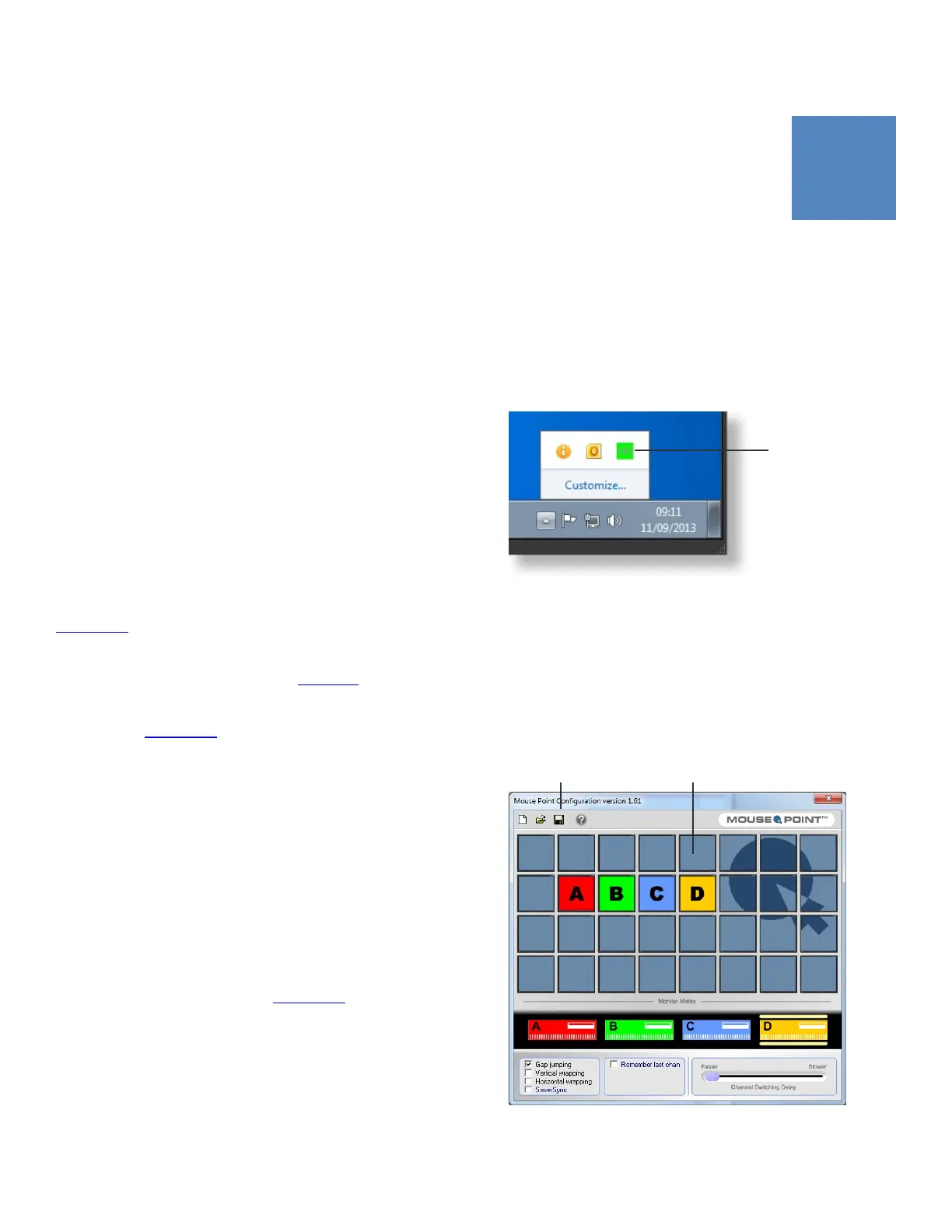
1 Right-click the Mouse Point icon in the system tray
(Windows XP) or taskbar notification area (Windows 7) and
choose Launch Mouse Point Configuration.
Mouse Point icon (1) in taskbar notification area
2 When the Configuration utility starts, use the monitor matrix
to define the relative position of the screens associated with
channels A, B, C and D.
In the example below, the screens are arranged in a simple
row. Dragging your mouse pointer across screen A onto
screen B triggers a corresponding K4u
+
focus switch from A
to B, and so on.
Mouse Point Configuration utility with Save button (1) and
monitor matrix (2)
1 2
1


 To Next Page