www.amulethotkey.com | 17
Amulet Hotkey K4u
+
Manual
3 Click the Save button to save the Mouse Point configuration
to a .k4c file. This file records how your screens are
arranged. It is saved on the computer hosting the
Configuration utility.
4 Now upload the configuration file to the K4u
+
.
a. Ensure that the computer where you saved the .k4c
configuration file is the live channel on the K4u
+
.
b. Right-click the Mouse Point button (see step 1) and
choose Update Mouse Point Configuration.
c. Select the .k4c configuration file that you created in the
previous step.
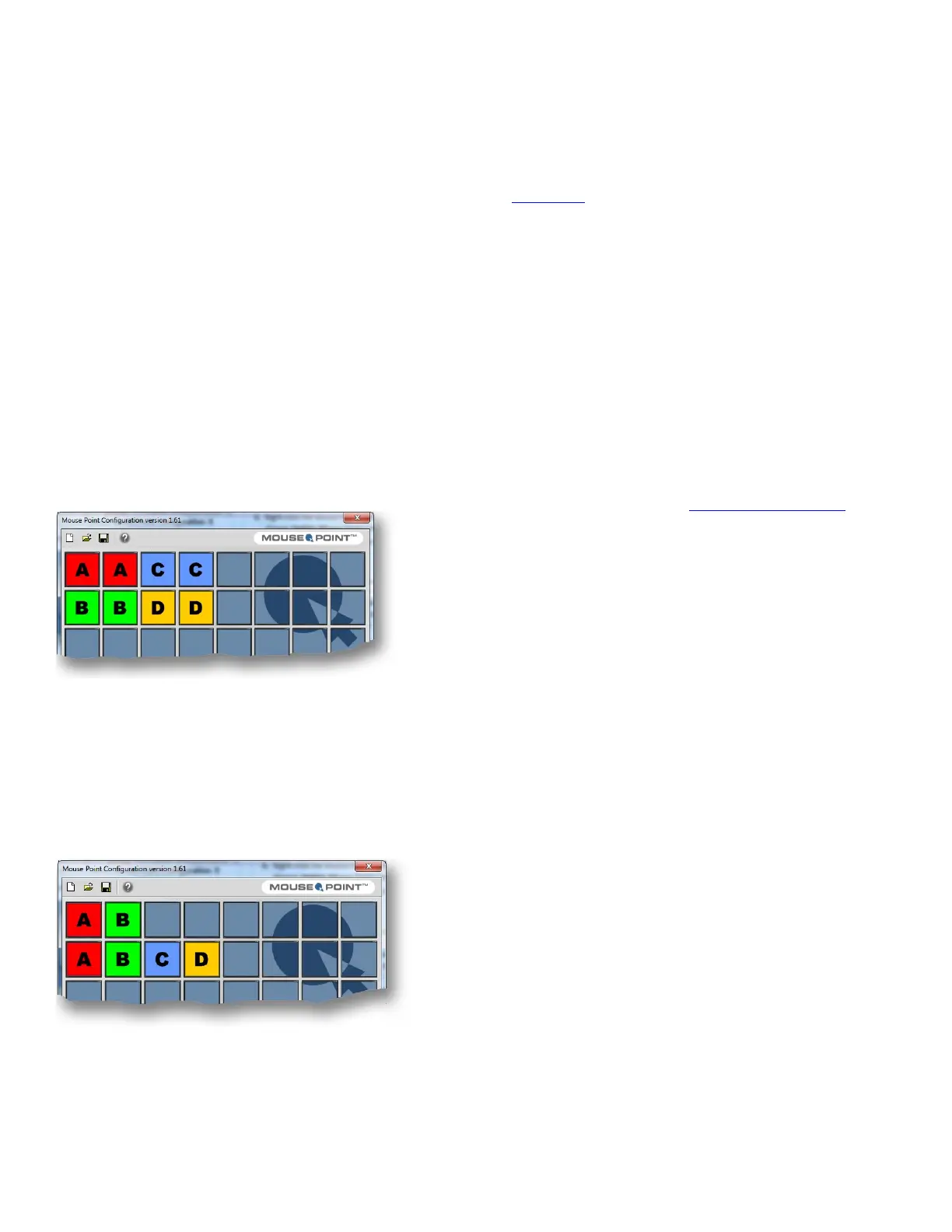
If required, you can specify any alternative screen arrangement.
For example, if your four screens are arranged in a 2x2 grid, you
can save a Mouse Point configuration like the one below. Here,
you trigger a focus switch when you drag the mouse down from
screen A to B, or down from screen C to D. In fact, you can
switch focus by dragging the mouse up, down, left or right
between screens.
Note:
In the monitor matrix, two or more adjacent cells for
the same channel represent a single computer screen.
Likewise, if screens A and B are arranged vertically in portrait
mode but screens C and D are in conventional landscape mode,
you can save a Mouse Point configuration like this. Here, a
B-to-C focus switch is only triggered if you drag your mouse
from the lower half of screen B across to screen C.
If horizontal wrapping is enabled in the above example, you can
trigger an A-to-D focus switch by dragging your mouse left from
screen. The focus wraps automatically back to D.
Note: Mouse Point also supports vertical wrapping.
6. 3 Set up SaverSync™ and Remember Last Channel
The SaverSync feature prevents screen savers on all
attached USB computers from activating until all keyboard
and mouse activity through the K4u
+
has stopped. For details,
see section 7. 4.
The Remember Last Channel feature enables the K4u
+
to
remember the last active channel after the unit is reset or
power cycled. This feature also enables the K4u
+
to remember
which channel the hot-plug port is connected to.
Note:
SaverSync and
Remember
Last Channel are not
Mouse Point features, but you must use the Mouse Point
Configuration utility to configure these features on a K4u+.
6.3.1 Requirements
Note the following requirements:
■ Mouse Point version: SaverSync and Remember Last Channel
require Mouse Point v1.61 or above. You can download the
Mouse Point applet from the Support > Downloads page of
the Amulet Hotkey website, www.amulethotkey.com.
■ Host PC: Verify that Mouse Point is installed on a computer
attached to the K4u
+
. The Mouse Point host PC does not need
to be permanently attached to the K4u
+
. You can remove the
host PC after uploading the Mouse Point configuration file to
the K4u
+
. For example, you can use a laptop as your host PC,
temporarily attaching it to K4u
+
units as required.
6.3.2 Activate SaverSync and Remember Last Channel
You activate SaverSync and Remember Last Channel by selecting
check boxes in the Mouse Point Configuration utility.
1 Change channels on the K4u+ to the Mouse Point host PC.
2 Right-click the Mouse Point icon in the system tray
(Windows XP) or taskbar notification area (Windows 7) and
choose Launch Mouse Point Configuration.
3 When the Configuration utility starts:
● Select the SaverSync check box.
● Select the ‘Remember last chan’ check box.
4 Click Save to save the updated Mouse Point configuration to
a .k4c file.
5 Close the Configuration utility.
6 Right-click the Mouse Point button (see step 1) and choose
Update Mouse Point Configuration.
7 Select the .k4c file that you saved in step 4.
8 When the update is complete, SaverSync and Remember
Last Channel are active.


 To Next Page