www.amulethotkey.com | 24
Amulet Hotkey K4u
+
Manual
7.1.6 Skip unused channels (active sensing)
With active sensing enabled when you switch channels, the K4u
+
skips any channel that appears to have nothing connected to it
(the computer on that channel is either switched off or an
unknown type).
Active sensing is enabled by default. Set DIP switch A5 to disable
or re-enable it. For DIP switch details, see section 3.
7. 2 Hot plugging USB devices
The hot-plug port on the K4u
+
front panel (see section 2. 1)
enables you to connect a compatible USB device such as a
printer or memory stick to any computer attached to the K4u
+
.
You can attach a USB hub to the hot-plug port to support
multiple devices, but you must use a self-powered hub in this
situation ie, a hub with its own power supply.
You can switch the hot-plugged device to a specific channel
using hot keys or you can configure the hot-plug port to
automatically follow the keyboard and mouse focus (see below).
The computer attached to the selected channel detects the
device as being hot-plugged and, if supported, loads the
appropriate drivers.
There are two ways to switch the hot-plug port, plus any
attached USB devices, to a specific channel:
■ Hot-plug follows the keyboard and mouse focus
When DIP switch B7 is ON, the hot-plug port switches
automatically to the current channel.
■ Hot-plug switched manually with hot keys + U
When DIP switch B7 is OFF, press the hot keys + U
combination to manually switch the hot-plug port to the
current channel. The hot-plug port remains on this channel
until you manually switch again, even if the keyboard and
mouse focus changes to a different channel. For hot key
details, see section 4.
Mouse Point operates over the USB connection from the K4u
+
to
the attached computers and requires an application to be
running on each computer.
Mouse Point periodically reports the cursor screen position to
the K4u
+
periodically. When a user moves the mouse pointer off
the side of the screen, the keyboard and mouse focus switches
to the computer attached to the adjacent monitor. To
accomplish this, Mouse Point stores a graphical representation
of the monitor locations in a database on the K4u
+
.
7.1.3 Mouse buttons
To change channels by pressing mouse buttons:
1 Hold down the centre mouse button.
2 Click the right or left mouse buttons to cycle around the
channels.
To use the centre mouse button in an application on an attached
computer, hold down the centre mouse button. Then move the
mouse a few pixels. This causes the mouse buttons to operate
normally. Alternatively, disable channel changing with mouse
buttons (set DIP switch A3 to OFF). Then use one of the other
supported methods to change channel.
7.1.4 K4 Controller
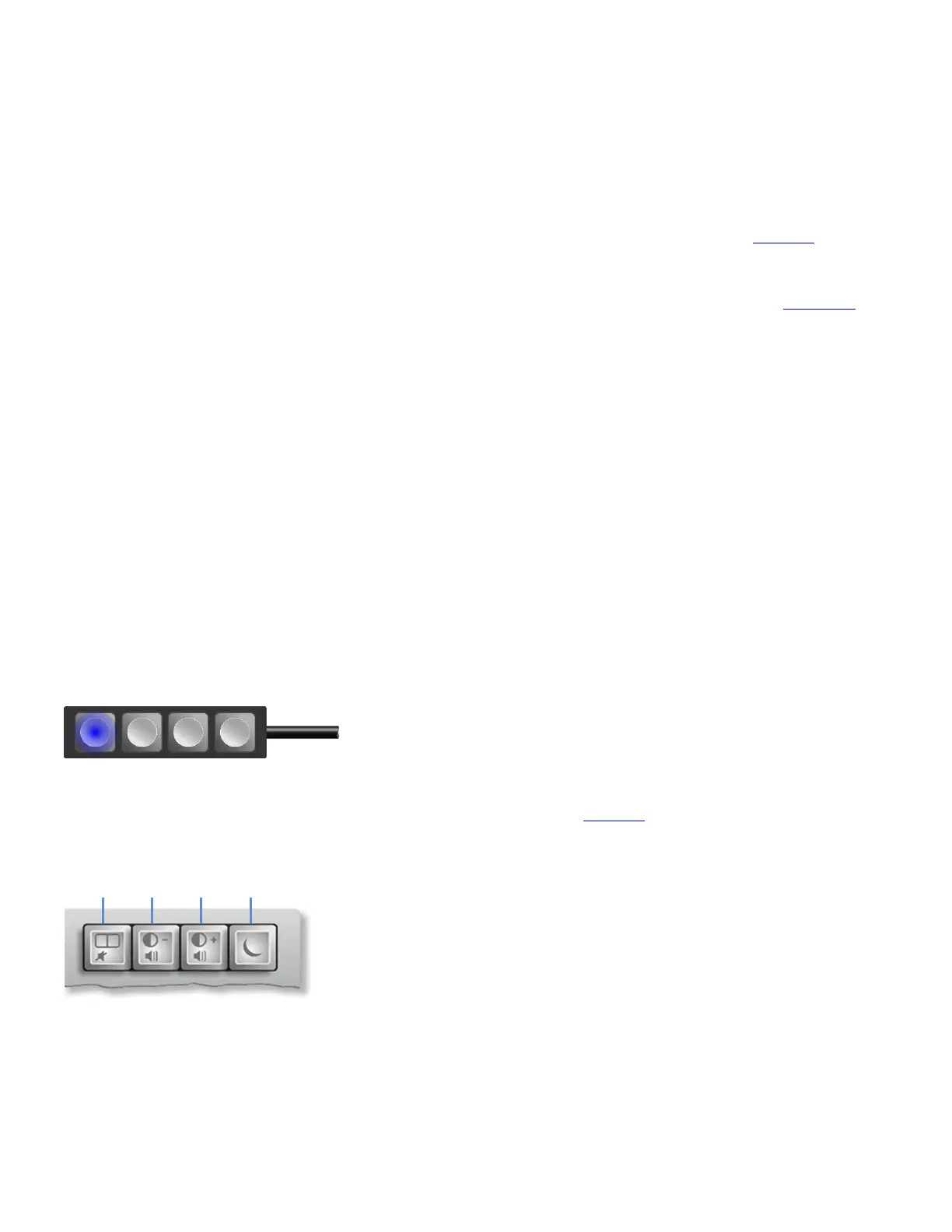
You can connect an optional K4 Controller to the K4u
+
for single
button channel selection with focus indication. The K4 Controller
comprises four illuminated push-buttons in a compact case. It
can be placed alongside a keyboard and allows the K4u
+
to be
located out of reach under a desk.
K4 Controller
7.1.5 Channel keys on Sun USB keyboards
(Applies to Sun® USB keyboards only) Press the keys below to
select channel 1, 2, 3 or 4 directly:
Channel keys on Sun USB keyboard


 To Next Page