www.anycubic.com
35
Introduction to slicing software
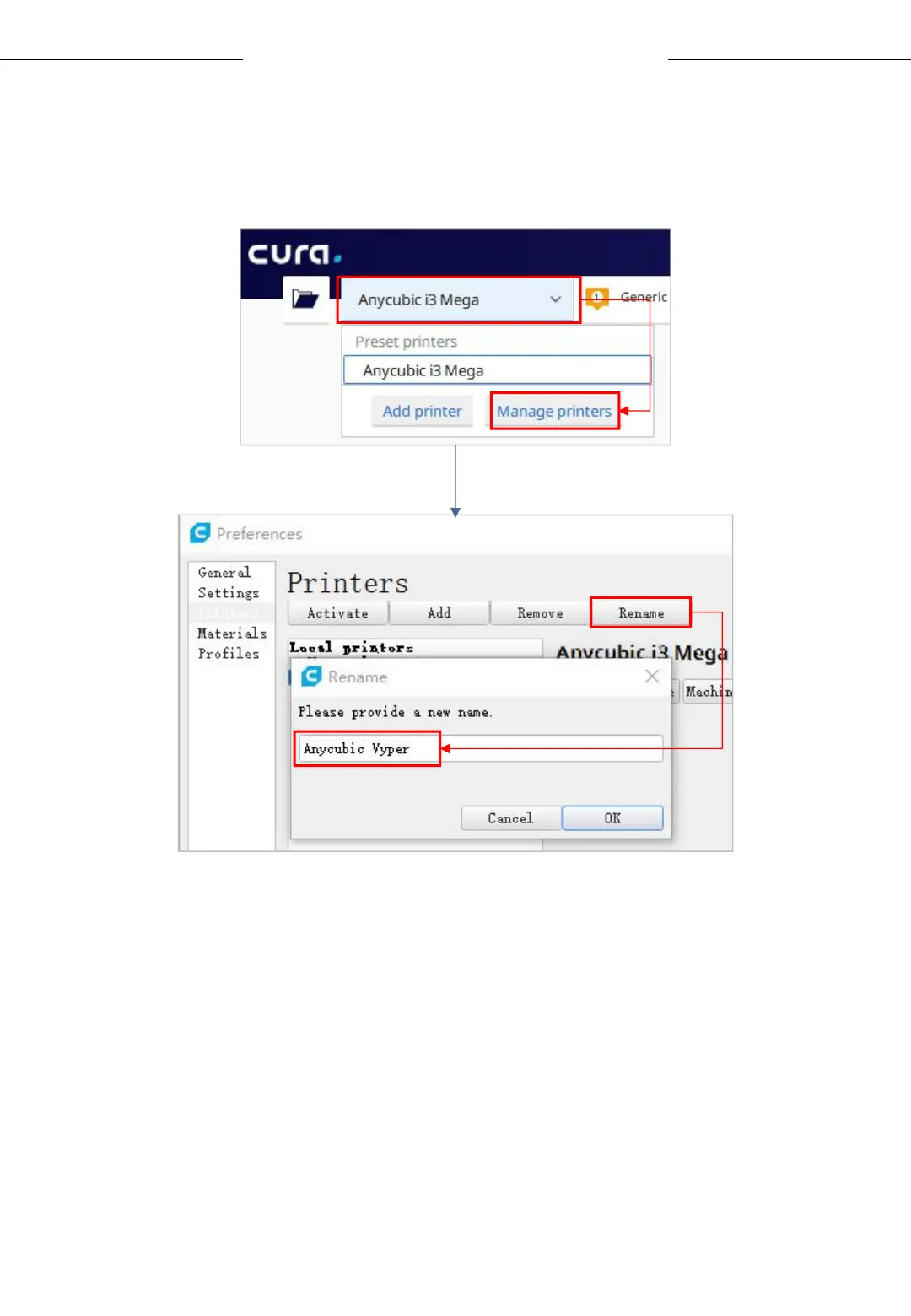
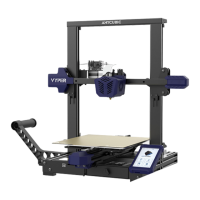
(1) Click Anycubic i3 Mega → Manage printers on the top left corner, and
rename the printer to Anycubic Vyper.
(2) In the same interface opened in Step (1), click Machine Settings and
set the X (Widch) / Y (Depth) / Z (Height) parameters of printer as 250,
255 and 265 respectively, as shown below.



 To Next Page