www.anycubic.com
29
Printing Models
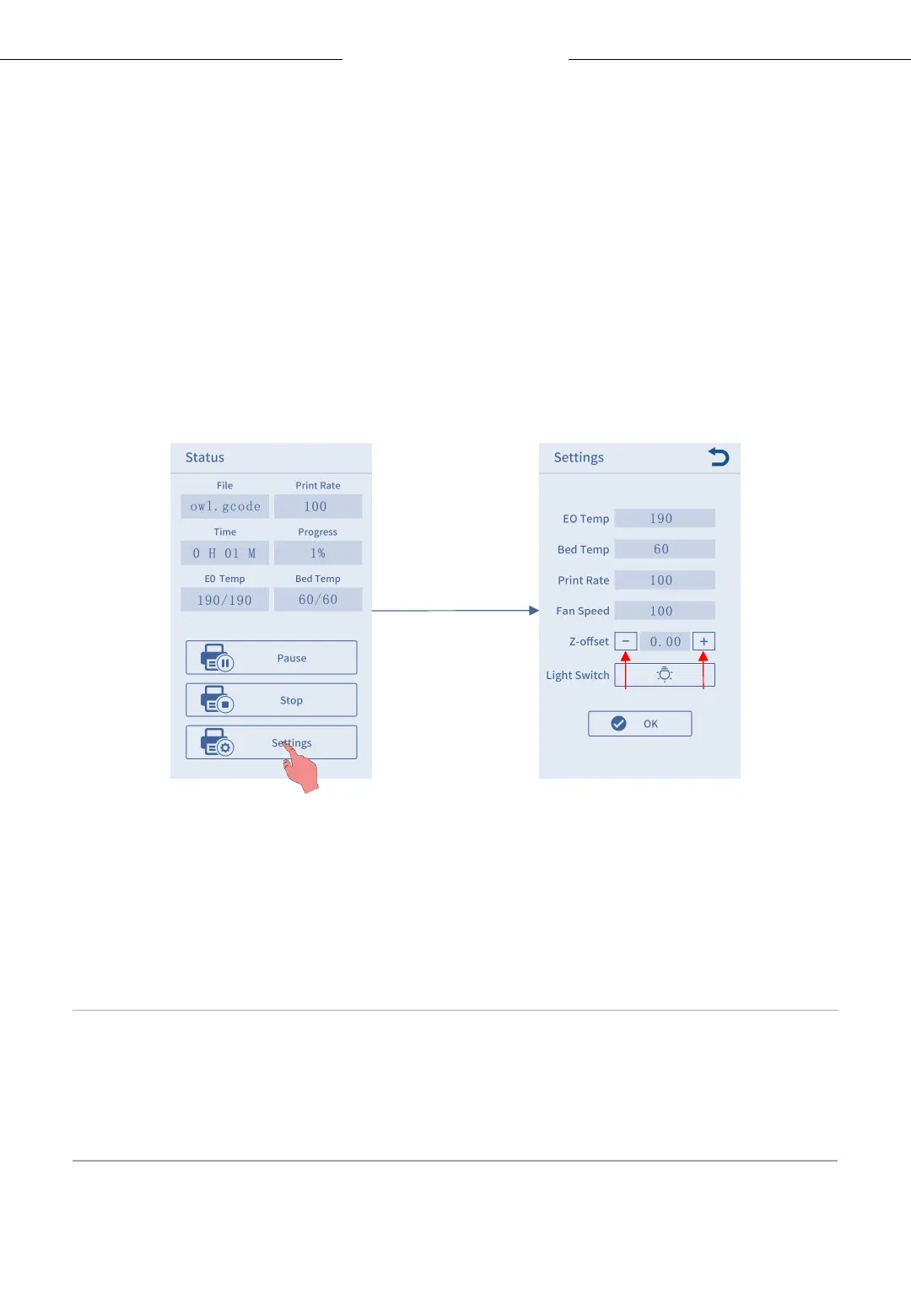
How to adjust the Z-offset:
Click Settings on printing status interface, then click “+” or “—” of the Z-
offset to adjust the distance between nozzle and printing platform and
observe the printing effect.
The printing effect ① and ③ can be improved by adjust Z-offset during
printing.
( * In most cases, there is no need to adjust Z-offset after auto-leveling.)
-: Decrease the distance
between
nozzle and printing platform.
+: Increase the distance
between
nozzle and printing platform.
* After adjusting the offset setting, click "OK" on the settings interface,
and the offset will be effective for subsequent printing; if you only click
the Return button without clicking "OK", the offset will only be effective
for this printing.



 To Next Page