www.anycubic.com
45
Introduction to slicing software
(2) Here we take Windows PC system for example. Double click
“CH341SerSetup.exe” and follow the wizard to install it. If the driver has
installed automatically in step (1), skip this step.
* After the installation is completed, refer to the method in step (1) to see
if the driver has been identified (no exclamation mark).
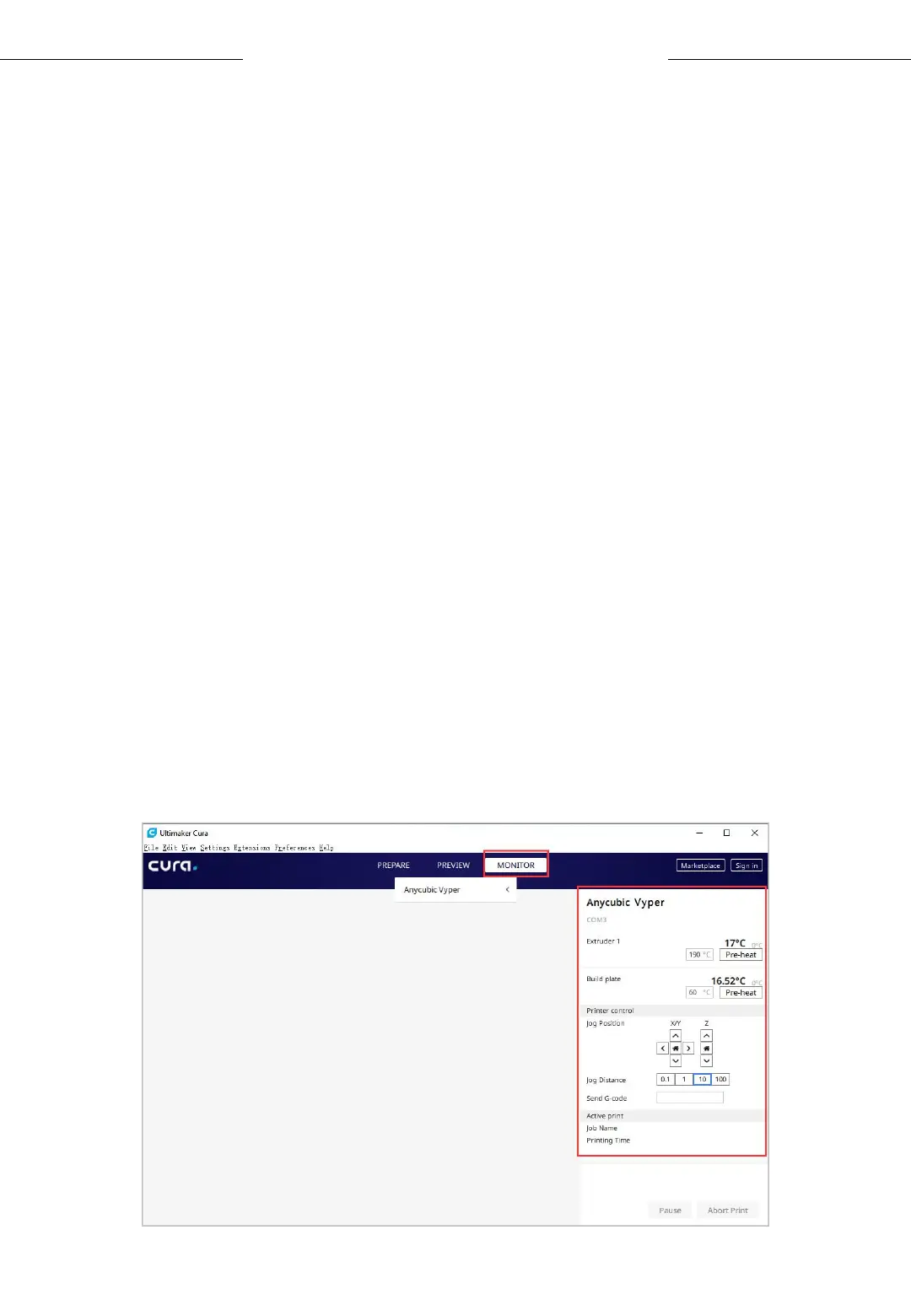
(3) After slicing, click Print via USB in the bottom right corner to go to
the monitor stage. After waiting for about ten seconds, the operation
panel will be displayed on the right side of the interface. And the printing
platform will be heated up for printing.
* If the printer is not connected properly, the Monitor interface will be
blank. Please plug the data cable to connect again.
* In the process of printing, do not plug the data line, or it will interrupt
the printing.
* In case of abnormal sound during the printing process, you can directly
turn off the power of the machine. Please check the Troubleshooting
chapter for more detail or contact Customer Service.



 To Next Page