AQUA SALT
+
MAINTENANCE AND INSTRUCTION MANUAL
Salt chlorine genera ENGLISH
ADSP7000753 rev. 5.0 09/07/2019 16/51
To get the best results from your chlorine generator,
programme its activity and set the values of its parameters. To do
so, the system comes with a user interface equipped with:
• Display
• Keys
• Led
The system can be also programmed through a software you can
install on your Windows PC.
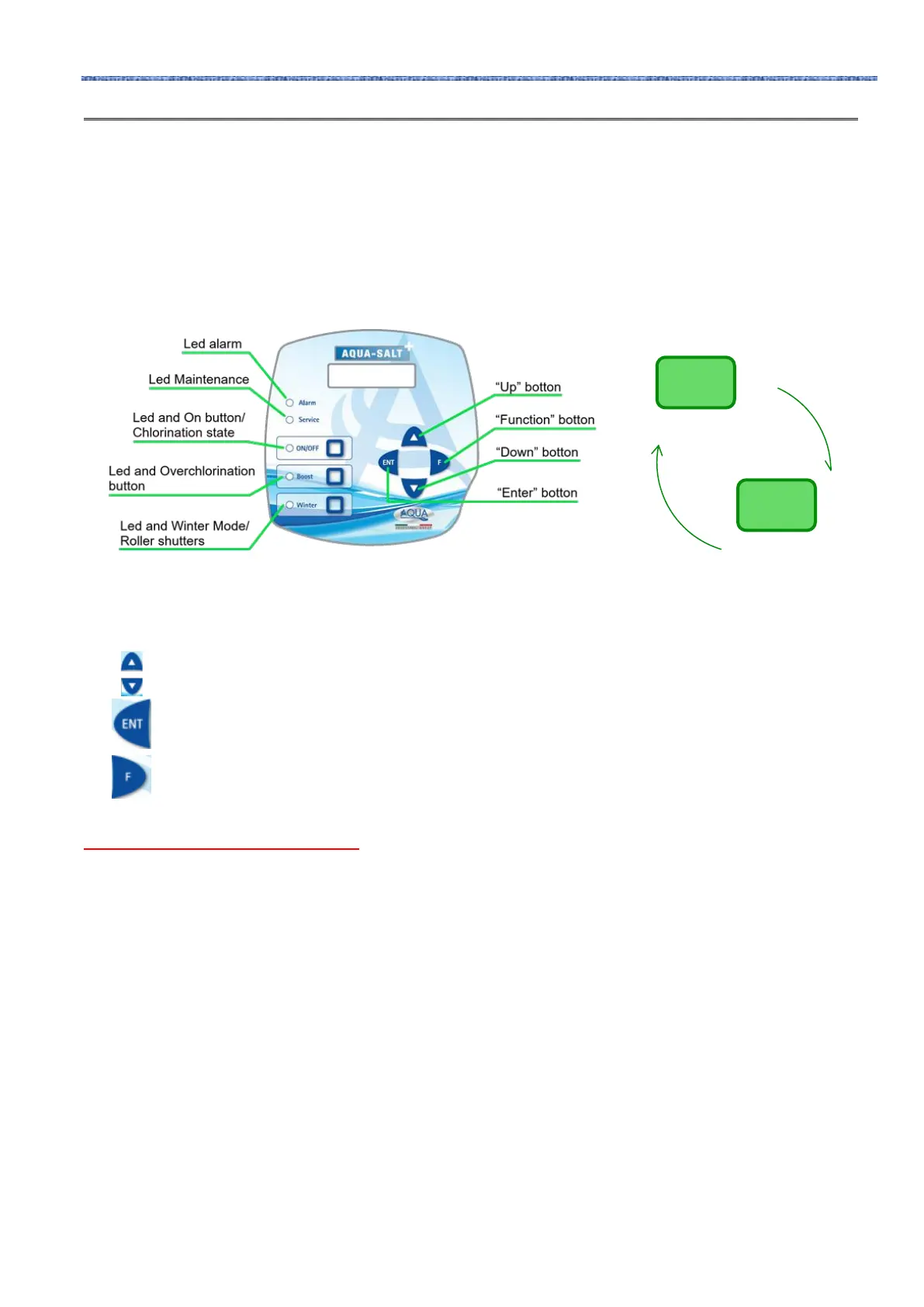
Picture 9 shows the user interface. We will now see its main
characteristics.
Up/Down keys modify the numerical values for every menu section and scroll the options of the
sections.
Enter (ENT) key accesses and exits the submenu sections. By holding it for 1 second from the User Menu,
you will access the Installer Menu. If you hold it from the main sections of a Menu, you will go back to the
parent Menu.
Function (F) scrolls the sections of the Menus.
Press it for 1 second from the User Menu to access the Programme Start Menu.
CHLORINATION POWER-ON/STATE KEY AND LED:
Pressing the ON / OFF button enables the production of chlorine, the next press production is disabled.
When the production of chlorine is enabled, the LED is:
▪ Green steady: chlorine production enabled but not running at the moment of viewing;
▪ flashing green: chlorine production enabled and running.
When the chlorine production is disabled the LED is off.
User Menu
Start
Program
Menu



 To Next Page