Loading the Media
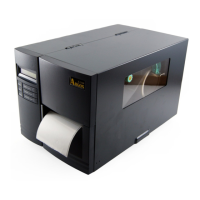
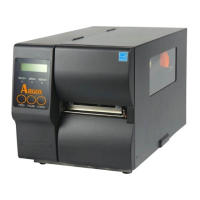
X 2000 Zip printers can be operated in three different options: standard,
peel-off, or with a cutter.
Standard mode allows you to collect each label freely.
In peel-off mode, the backing material is being peeled away from
the label as it is printed. After the former label is removed, the next
one will be printed.
In cutter mode, the printer automatically cuts the label after it is
printed.
Standard Mode
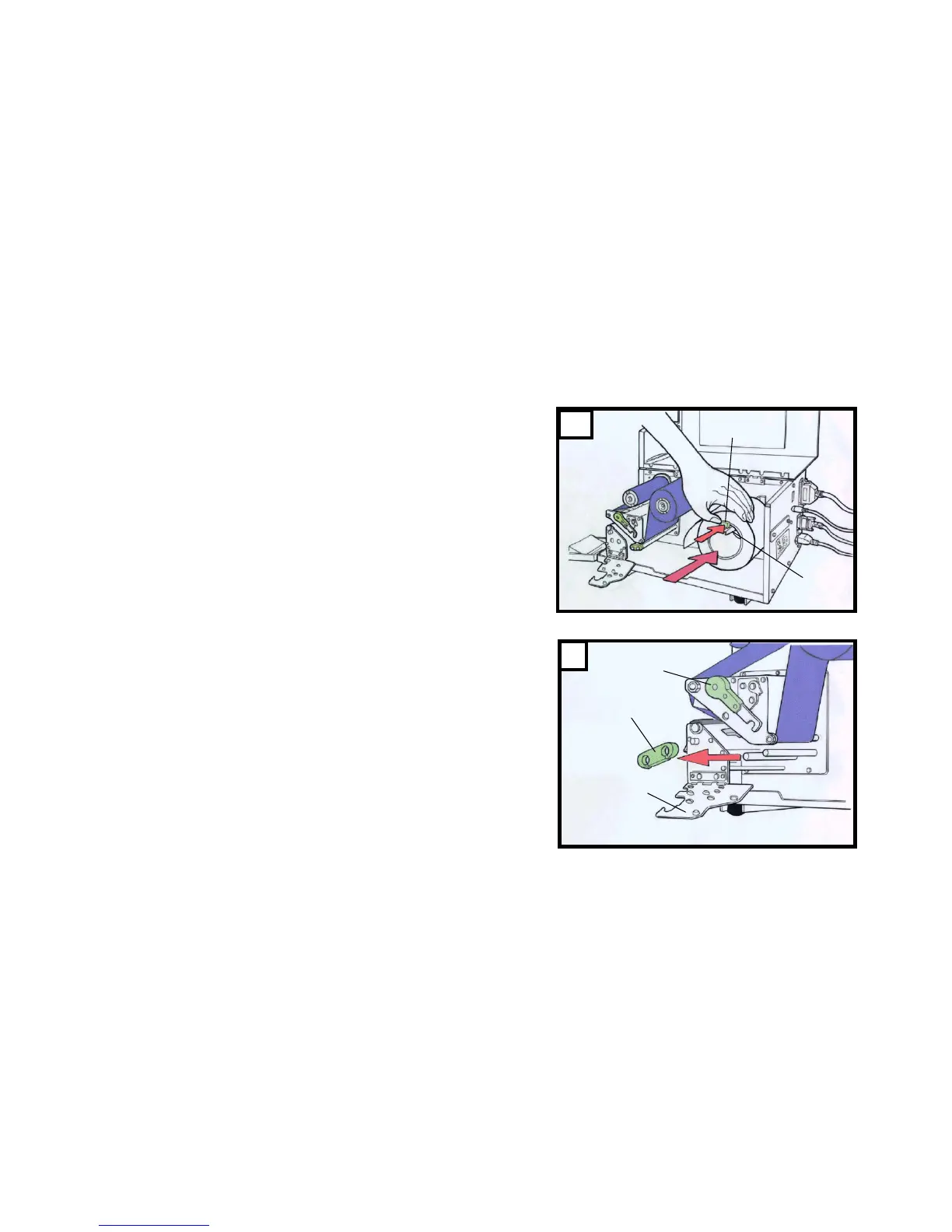
1. Insert the media roll into the media supply spindle and move the
media guide to the inside. ( Figure 6 )
2. Push the head latch by anti-clockwise, and then fold the bracket.
3. Remove the outside media guide. ( Figure 7 )
1.Lead the Media through the print head module and under the paper
sensor guide. ( Figure 8 )
5. Put back the outside media guide, close the bracket, and buckle the
head latch. ( Figure 9 )
6. Close the top access door and the front access door and then turn
on the printer or press the “FEED” button if the printer is already on
( Figure 10 )
12


 To Next Page