Chapter 4: Installing the Cable Modem
PN 365-095-30001 x.1 Touchstone CM8200 Cable Modem User Guide
Copyright 2016, ARRIS Enterprises, LLC. All rights reserved. 14
4. Connect the other end of the Ethernet cable to the Ethernet port on your computer.
5. Connect the power cord to the Power port on the rear of the CM8200.
6. Plug the other end of the power cord into an electrical wall outlet that is not controlled by
a wall switch.
Note: This automatically powers ON the CM8200. There may be up to a 15 second
delay for the Power LED on the CM8200 front panel to light up after the power is
connected.
Establish an Internet Connection
Although your computer may already be configured to automatically access the Internet, you
should still perform the following cable modem connectivity test to check that your devices
were connected properly:
1. Power ON the computer connected to the CM8200, if it is turned off, and then log in.
2. Contact your service provider to activate (provision) the CM8200. You may have to
provide the HFC MAC ID listed on the cable modem label.
Note: Your service provider may allow for automatic activation which will
automatically launch their special website when you open a web browser.
3. After the CM8200 is provisioned (or activated), open a web browser (such as Internet
Explorer, Google Chrome, Firefox, or Safari) on the computer.
4. Type a valid URL (such as www.arris.com) in the Address bar and then press Enter.
The ARRIS website should open. If it fails to open, please contact your service provider for
assistance.
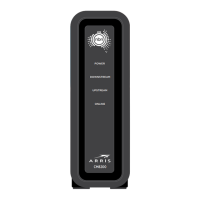
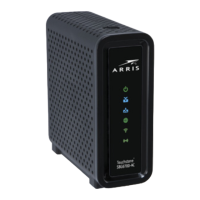
5. Check that the Power, Receive, Send, and Online front panel LEDs on the CM8200 light up
in sequential order. See Front Panel for additional LED status information.
If all four LEDs did not light up Solid and you are not connected to the Internet, you
may have to contact your service provider to reactivate your CM8200 or check for
possible signal issues.
If you still cannot connect to the Internet, the CM8200 may be defective. Please
contact your service provider for assistance.



 To Next Page