28
April 2007
e-motion™ Operating Manual - B-Level STD
MACHINE HANDLING
Lock Angle
Figure b
Figure c
HOPPER EMPTY / HOPPER REFILL
If the hopper runs empty during a cashout.
Hopper empty procedure set to handpay mode
1. Carry out handpay and confirm handpay message
using the jackpot key.
2. The messages "CALL ATTENDANT - HOPPER EM-
PTY" is displayed. This message can not be clea-
red by means of the audit key.
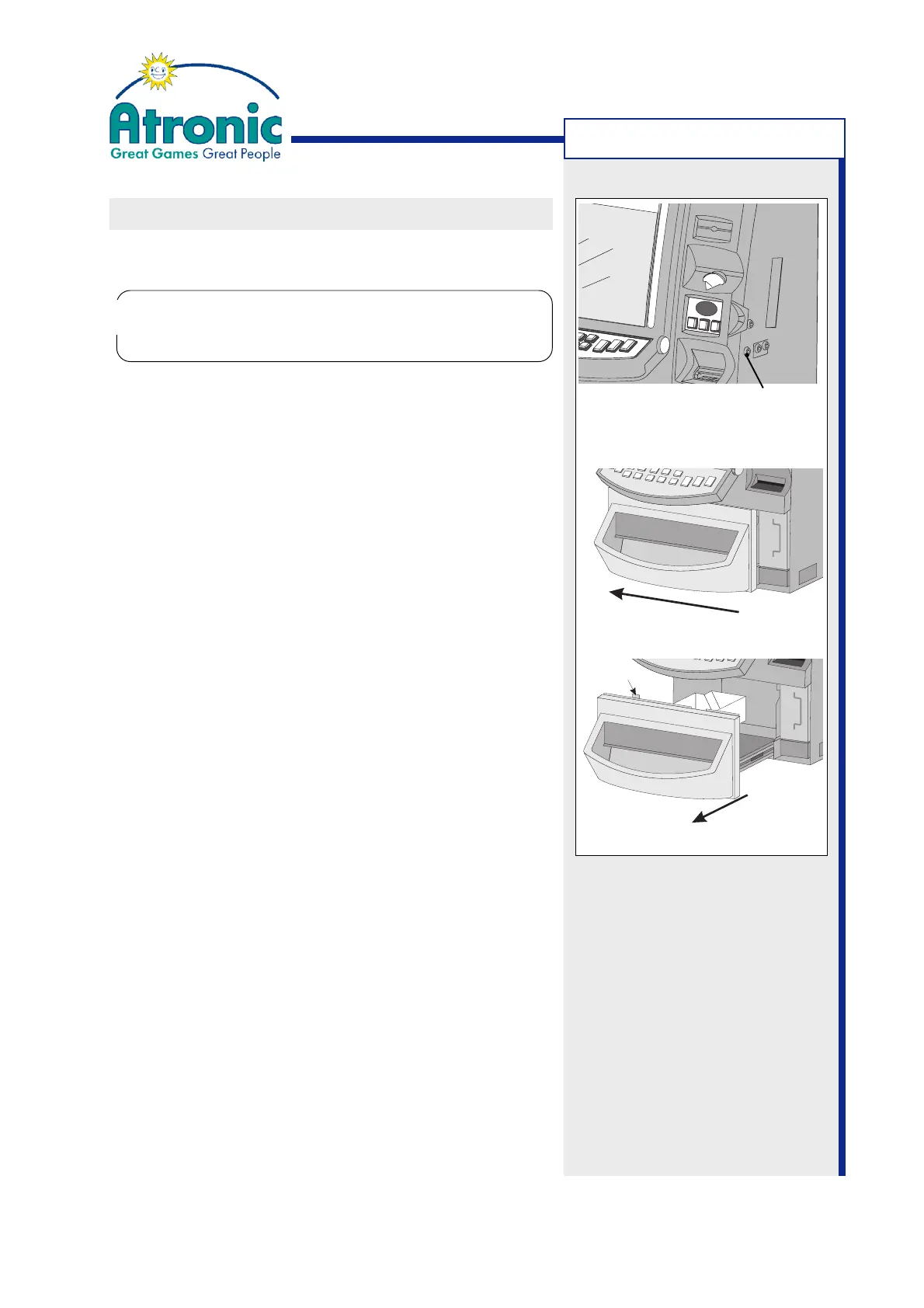
3. Unlock the hopper drawer (fig. a), slide it to the
left (fig. b) and pull out the hopper drawer (fig. c).
4. (optional) Refill the hopper and check that no coins
have fallen into the cabinet. Remove all foreign ob-
jects from the hopper drawer area.
5. Close the hopper drawer and slide it back to the
right with the lock in open position.
6. Lock the hopper drawer.
Hopper empty procedure set to refill mode
1. The messages "CALL ATTENDANT - HOPPER EM-
PTY" and "OPEN HOPPER DRAWER AND REFILL
HOPPER" are displayed. These messages can not
be cleared by means of the audit key.
2. Unlock the hopper drawer (fig. a), slide it to the left
(fig. b) and pull out the hopper drawer (fig. c).
3. Refill the hopper and check that no coins have fal-
len into the cabinet. Remove all foreign objects from
the hopper drawer area.
4. If "Service Menu / Settings / Hardware / Hopper /
General / Hopper Refill" is enabled, a refill screen
is displayed. Enter the number of coins refilled.
5. Close the hopper drawer and slide it back to the
right with the lock in open position. The payout
continues when the hopper drawer is closed.
6. Lock the hopper drawer.
The hopper drawer lock must be locked manually.
There is no slam lock. Any attempt to slam the
drawer closed may damage the locking mechanism.
!
!
Figure a
Hopper Drawer Lock



 To Next Page