User’s Manual
8
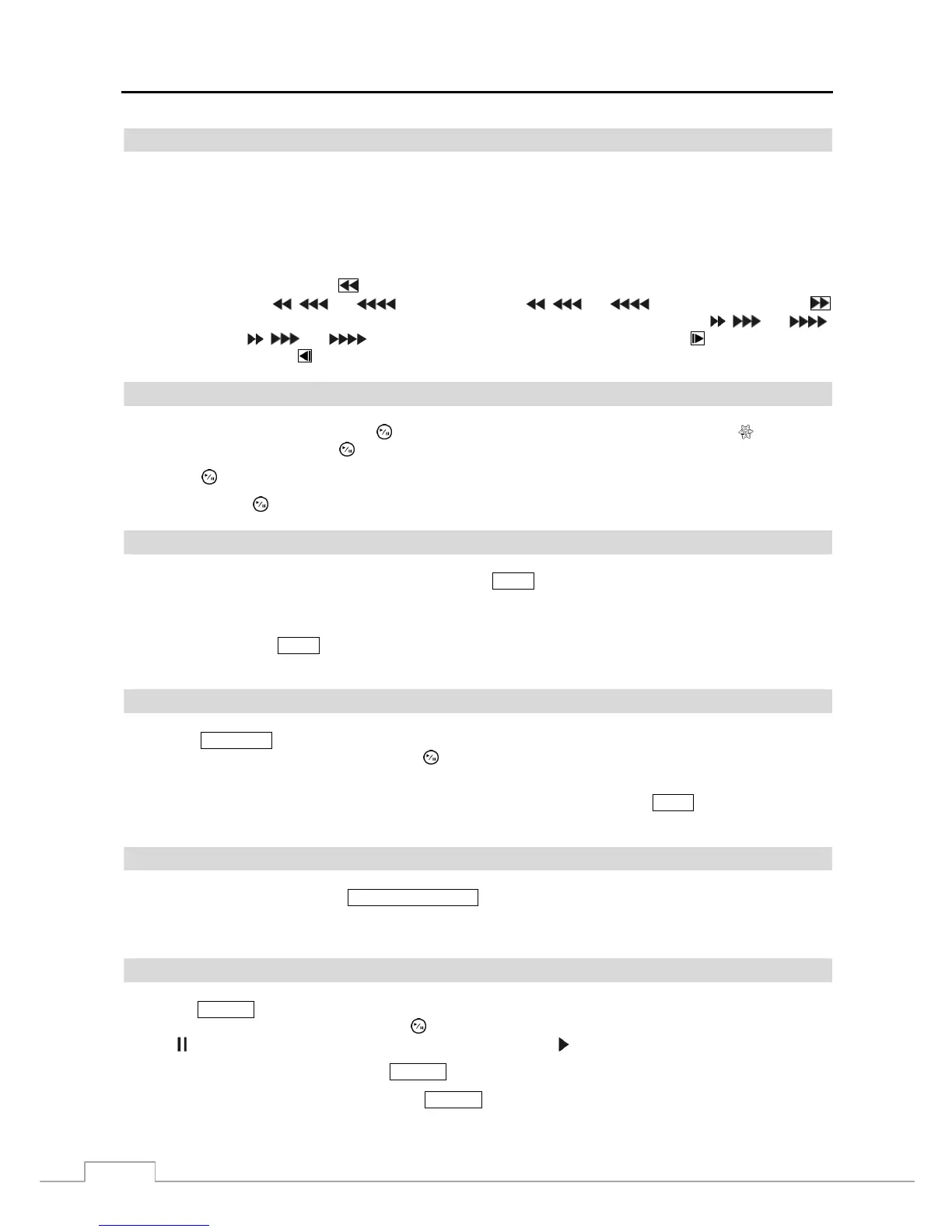
Arrow Buttons
These buttons are used to navigate through menus and GUI. You can also use them to change numbers by highlighting
a number in the menu and using the Up and Down arrow buttons to increase or decrease the number’s value.
These buttons are also used to control Pan and Tilt when in the PTZ mode. When in the PIP display format, pressing
the Up and Down arrow buttons moves the position of the small screen counter-clockwise and clockwise, and pressing
the Left and Right buttons changes the PIP screen size.
In the playback mode, pressing the button plays video backward at high speed. Pressing the button again toggles
the playback speed from
, and . The screen displays , and respectively. Pressing the
button plays video forward at high speed. Pressing the button again toggles the playback speed from
, and .
The screen displays
, and
respectively. When in the pause mode, pressing the
button moves to the
next image and pressing the
button moves to the previous image.
Play/Pause Button
In the live monitoring mode, pressing the
button freezes the current screen and the screen displays
icon. When
in the playback mode, pressing the
button plays back images at regular speed or pauses playing video.
Pressing the button selects a highlighted item or completes an entry that you have made during system setup.
The LED around the button is lit when the unit is On.
MENU Button
In the Live Monitoring mode and Search mode, pressing the
MENU button displays the menu icons on the right edge
of the screen. Pressing the button again hides the menu icons. During menu setup, pressing the button closes the
current menu or setup dialog box
.
Pressing and holding the MENU button for three seconds or longer enters the cameo mode and allows you to change
the screen layout. Refer to the following Live Monitoring – Active Cameo Mode section for details.
PTZ/Zoom Button
Pressing the
PTZ/ZOOM button zooms in the current image in double on the screen. You can use the arrow buttons to
move the rectangle to another area. Pressing the (Play/Pause) button zooms in the image in rectangle.
Pressing and holding the button for three seconds or longer enters the PTZ (Pan/Tilt/Zoom) mode and the PTZ icon
flickers. Pressing the button again exits the PTZ mode. Pressing the arrow buttons or
MENU button allows you to
control properly configured cameras.
Group/Sequence Button
When in the live mode, pressing the
GROUP/SEQUENCE button changes the screen from the current camera group
to the next camera group, and the screen displays the page number. Pressing and holding the button for three seconds
or longer displays live channels sequentially.
Search Button
Pressing the
SEARCH button enters the search mode, and pressing the button again exits the search mode. When entering
the search mode, video is paused. Pressing the (Play/Pause) button plays back video at regular speed. The screen
displays
when the DVR is in the Pause mode and the screen displays when the DVR is playing back video.
In the Search mode, pressing and holding the SEARCH button for three seconds or longer allows you to copy video clips.
When in one of the multi-view formats, pressing SEARCH button enters the Triplex mode. The DVR supports the
Triplex function: monitoring, recording and playing back at the same time.



 To Next Page