User’s Manual
74
Bookmarks
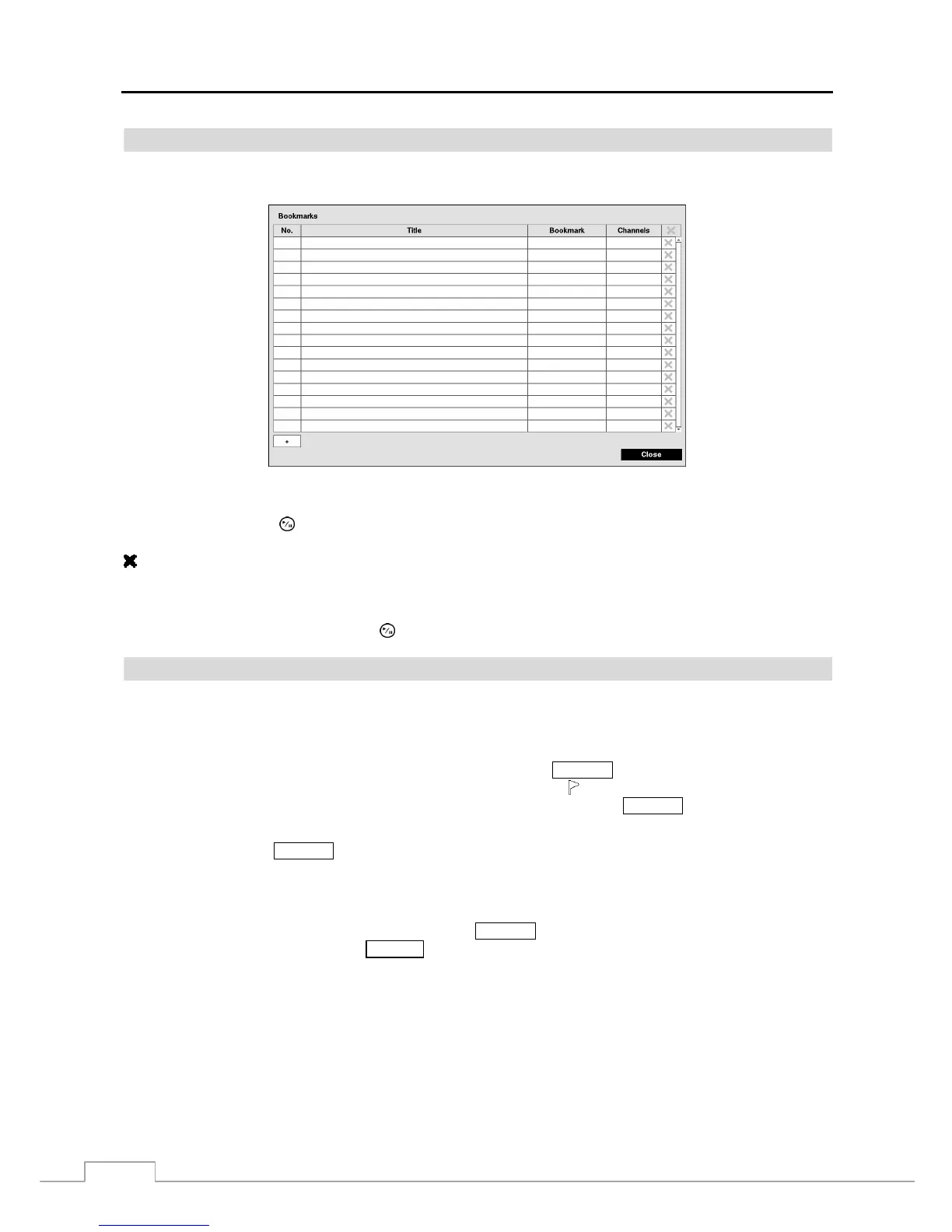
The Bookmarks screen can also be accessed by selecting Bookmark in the Search menu.
Figure 52: Bookmarks screen.
Highlight
+
and press the
(Play/Pause) button to add the current playback point to the bookmark list. Highlight the
Title box and enter the name of the registered bookmark. Use the virtual keyboard to enter the bookmark name. The
column can be used to delete a Bookmark.
NOTE: Up to 64 bookmarks can be registered.
Use the arrow buttons to highlight the bookmark point for which you would like to see video. The selected bookmark
will display on the screen by pressing the
button.
Clip-Copy
Video clips can be copied on an external USB hard disk or flash drive. The copied video clips can be viewed on
computers running Microsoft Windows 2000, XP, Vista or 7. Refer to the Appendix – USB Hard Disk Drive Preparation
for information on preparing the external drive for clip copy.
Selecting A–B Clip-Copy in the Search – Export menu or pressing the BACK UP button on the remote control during
playback will set the starting point of the video to be clip copied, and the
icon displays at the bottom-left corner of
the screen. Selecting A–B Clip-Copy in the Search – Export menu or pressing the
BACK UP button again will set the
ending point of the video to be clip copied by displaying the Clip-Copy screen.
Pressing and holding the BACK UP button on the remote control for more than three seconds while in the Search mode
or Live Monitoring mode initiates the One-Touch Clip Copy function. The last recorded image will be the ending
point of video to be clip copied, and the system will automatically begin to calculate the possible video data size that
the selected storage media can handle.
Select Clip-Copy in the Search – Export menu, press the BACK UP button on the remote control while in the Live
Monitoring mode or press and hold the SEARCH button on the front panel for more than three seconds while in the
Search mode, and the Clip-Copy screen appears to allow clip copy setup.



 To Next Page