Digital Video Recorder
75
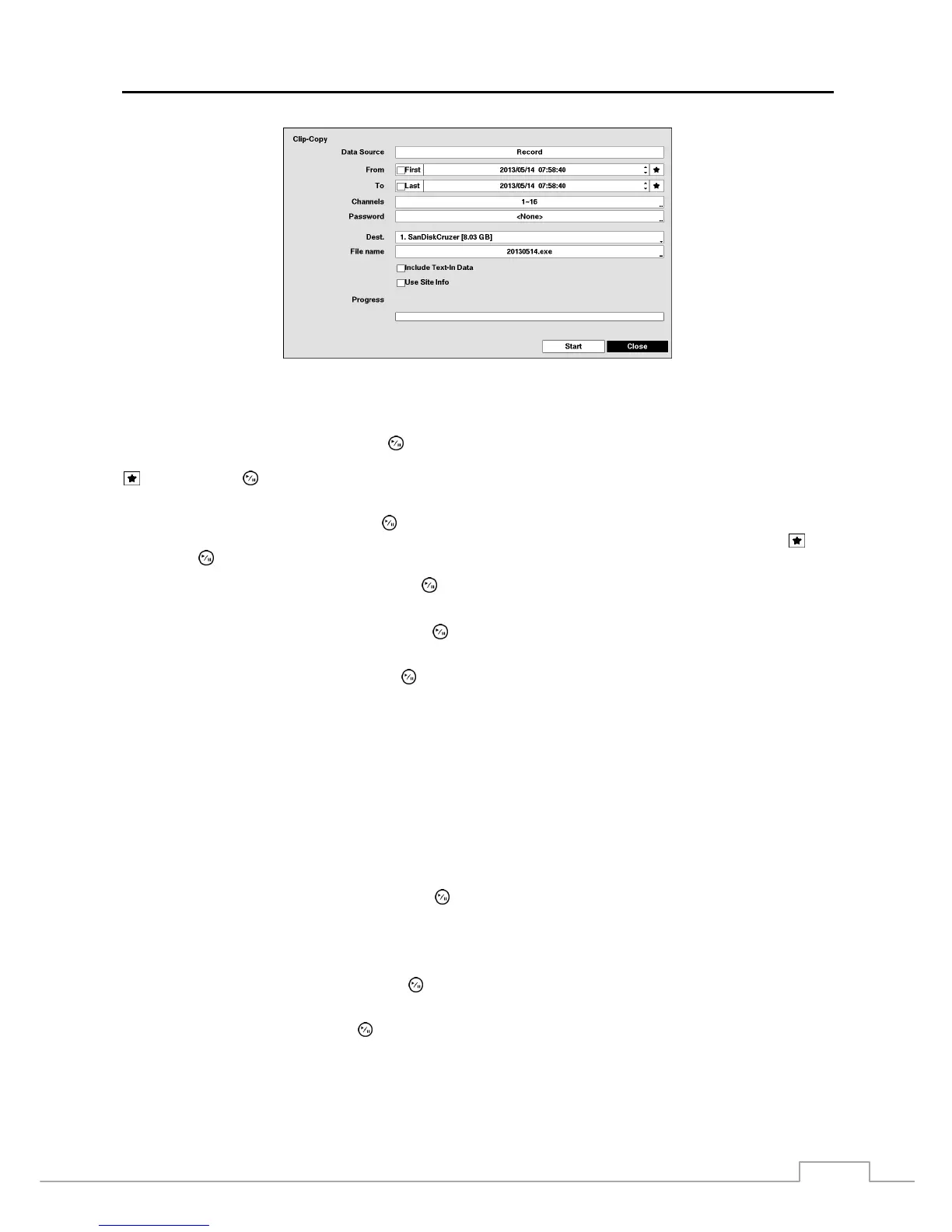
Figure 53: Clip-Copy screen.
You can search video from the first to last recorded images, or you can set the start and stop times and dates.
Highlight the box beside From and press the
(Play/Pause) button to toggle between On and Off. When set to Off, you
can enter a specific Date and Time. When set to On, the search will be from the first recorded image. When highlighting
and pressing the
button the bookmark list displays and the bookmark point you selected will be the starting date
and time.
Highlight the box beside To and press the
button to toggle between On and Off. When set to Off, you can enter a
specific Date and Time. When set to On, the search will be from the last recorded image. When highlighting
and
pressing the
button the bookmark list displays and the bookmark point you selected will be the ending date and time.
Highlight the box beside Channels and press the
button. You can select the cameras that you would like to include
in your video clip
.
Highlight the box beside Password and press the
button. A virtual keyboard appears allowing you to enter the
password for reviewing the video clips.
Highlight the box beside Dest. and press the
button. You can select the storage device or a NetFS site on which
you would like to record the video clip. If you enabled the NetFS function (Network menu > NetFS tab) and set the
Use setting to ALL or Clip-Copy, you can copy video clips to the NetFS site. If you select NetFS, select a NetFS
site from the registered NetFS site list.
CAUTION: The USB device for clip copy must be FAT 16 or FAT32 format.
NOTE: When copying video clips on a NetFS site, you cannot check the disk volume of the NetFS site for the
video clips to be uploaded. The DVR displays the volume as 30GB regardless of the actual disk volume.
If upload fails after video clips are copied, the copied video clips will be deleted. If the same file exists,
video clips will not be copied.
The DVR automatically assigns a file name to the video clip. However, you can give the video clip file a different name.
Highlight the box beside File Name and press the
button. A virtual keyboard appears. Enter a file name for the
video you are backing up and select Close. The DVR will automatically add the camera number (for example “01”)
and “.exe” to the file name.
NOTE: When naming a file, you cannot use the following characters: \, /, :, *, ?, “, <, >, |.
Highlight Include Text-In Data and press the button. This will toggle between On and Off. When this feature is
On, you can include text-in data when copying video if the video was recorded with text-in data.
Highlight Use Site Info and press the button. This will toggle between On and Off. When this feature is On, you
can add the site information to the file name for the video you are backing up.
NOTE: When the site information is added to the file name, some special characters (\, /, :, *, ?, “, <, >, |) in the
site information will be converted to “_”.



 To Next Page