Digital Video Recorder
47
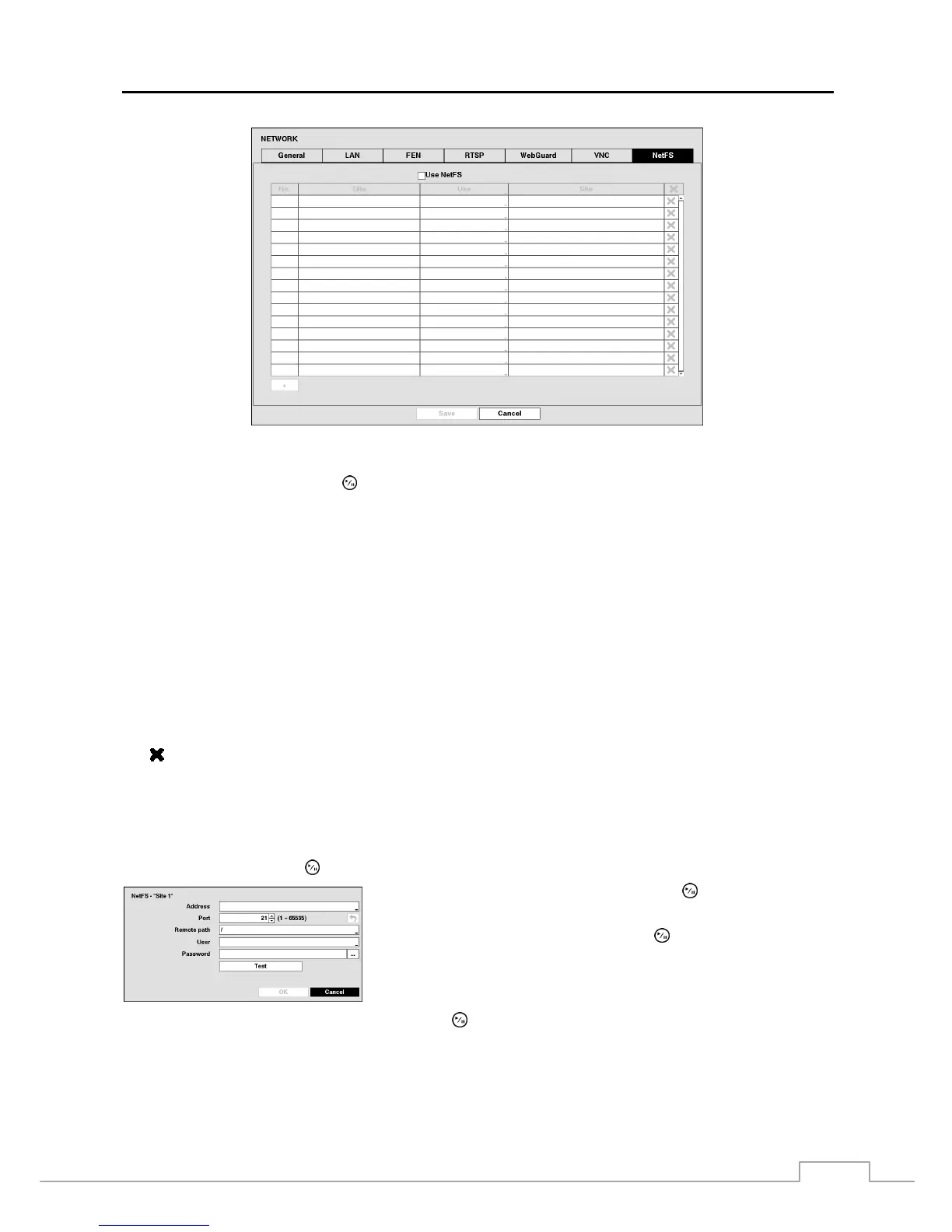
Figure 32: Network – NetFS.
Highlight Use NetFS and press the
button to toggle between On and Off.
The Title box displays the NetFS site name. Use the virtual keyboard to enter the name.
The Use box allows you to select the usage of the NetFS function.
N/A – It disables the NetFS function.
ALL – It enables all NetFS functions.
Upgrade – It allows you to use the upgrade file uploaded on the NetFS site.
Setup – It allows you to import or export a setup file uploaded on the NetFS site.
System Log – It allows you to save system log on the NetFS site.
Clip-Copy – It allows you to manually copy video clips to the NetFS site or to automatically copy event-detected
video clips to the NetFS site.
Print – It allows you to save images as a PDF file on the NetFS site.
The Site box displays the NetFS site information.
The
box allows you to delete a NetFS site.
NOTE: When you delete an FTP site in the NetFS setup screen on the Network menu, the FTP site in the FTP setup
screen on the Notification menu will be deleted, too.
When you change the usage to other than ALL or Clip-Copy, an FTP notification function will be
disabled.
Highlight the + and press the
button to register a NetFS site (max. 16).
Highlight the box beside Address and press the button. A virtual
keyboard appears allowing you to enter the NetFS address.
Highlight the box beside Port and press the button. Set the port
number used when accessing the NetFS site by using the Up and Down
arrow buttons to increase or decrease the numbers.
Highlight the box beside Remote path and press the button. A virtual keyboard appears allowing you to enter a
folder path in the NetFS site.



 To Next Page