User’s Manual
12
Throughout the screens you will see
. Highlighting the and pressing the button gives you the opportunity to
reset that screen to its default settings.
Highlighting This page or All pages and pressing the button resets the current page
or all pages of the screen to its or their default settings.
After you are finished with any setup screen, you can highlight Save and press the button to save the changes and
exit the screen. If you do not wish to save the changes, highlight Cancel and press the
button to exit the screen.
Press the
MENU button or move the mouse pointer on the right edge of the screen and then select (Login) in the Live
Monitoring menu to enter the setup screens. The Login screen appears.
Select a User and enter the password by pressing the appropriate
combination of Camera number buttons and then the
button. There
is no default password when logging in the admin user for the first
time. If you do not know the password, click the
button for guidance.
Figure 5: Login screen.
NOTE: To assure the secure management of the system, setting up a password is strongly recommended.
If you cannot use the front panel buttons, click the
button using the mouse to enter a password, and
the virtual keyboard displays. See instructions below for using the virtual keyboard.
To log the user out of the system, press the
MENU button or move the mouse pointer on the right edge
of the screen and then select (Logout) in the Live Monitoring menu. The Logout screen displays asking
you to confirm whether or not you want to log out the current user.
Figure 6: Logout screen.
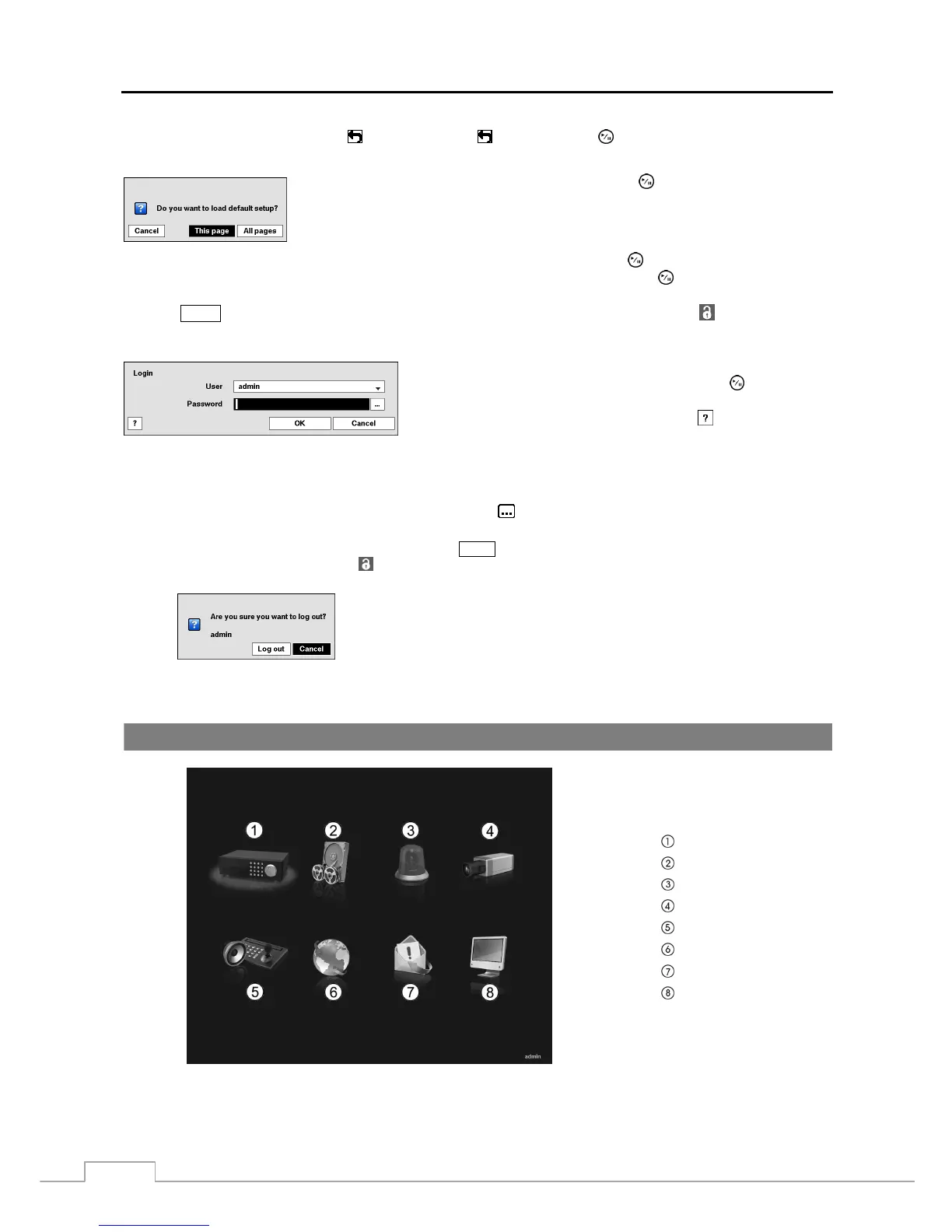
Setup Screen
System
Record
Event
Camera
Device
Network
Notification
Display
Figure 7: Setup screen.



 To Next Page