Verifit
®
User's Guide Version 4.8 © November 2016
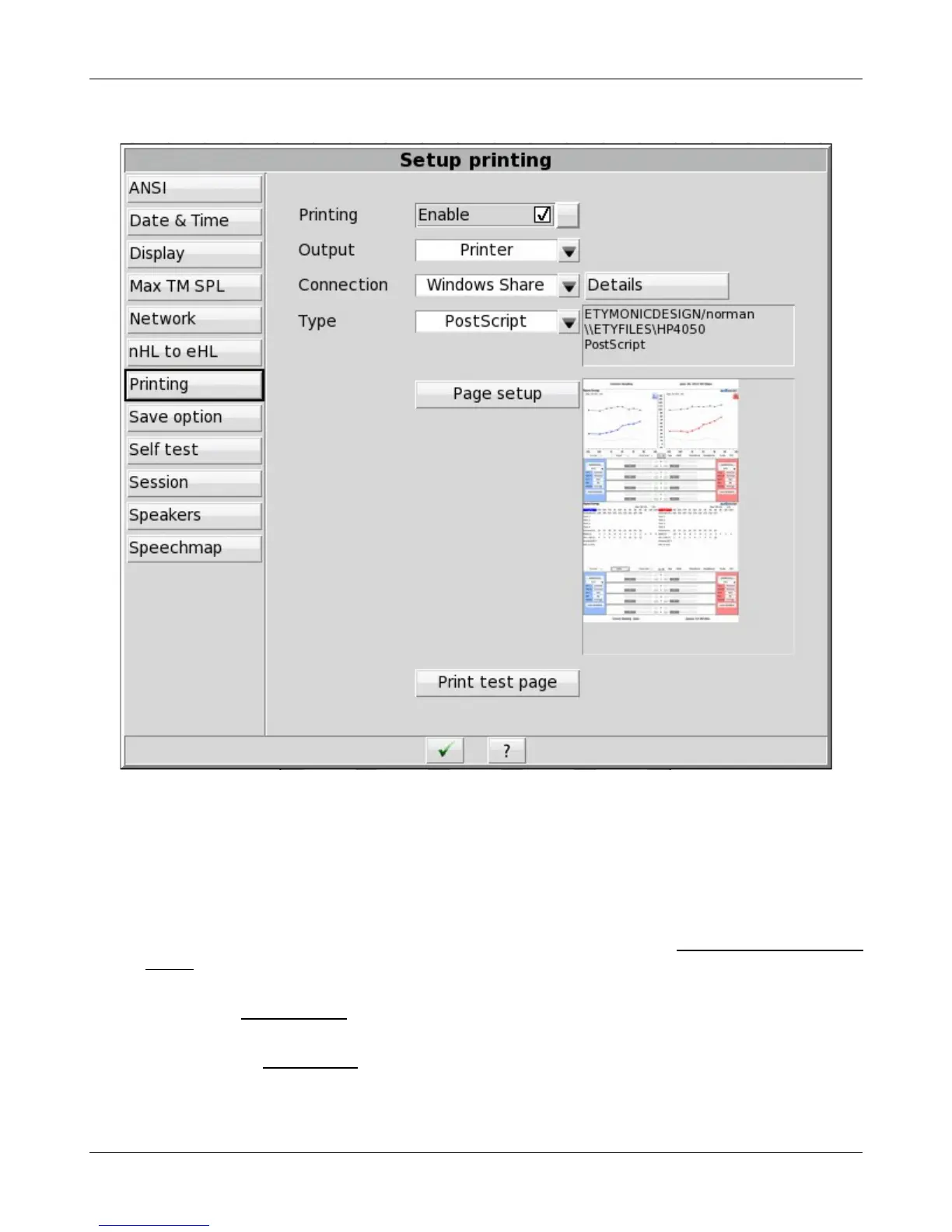
button. To test your selected options, click the [Print test page] button.
Printer connection
When using the Printer output option, you must also select the printer Connection and Type. If the printer
connects directly to your Verifit through a standard USB cable, select USB. If the printer is accessible on a local
area network (LAN), then select either Windows Share or Network.
Choose Windows Share if the printer connects through a Windows laptop, PC, or server computer. Windows
shared printers are common in both small and large offices. See the section below, Windows-shared printers and
folders, for instructions about setting up a Windows-shared printer.
Choose Network if the printer connects directly to the network through its own interface and cable. See the
section below, Network printer, for instructions about setting up a Network printer.
Both Windows Share and Network printer connection options require that your Verifit be connected to a local
area network. See Network Setup for details.
127


 To Next Page