Verifit
®
User's Guide Version 4.8 © November 2016
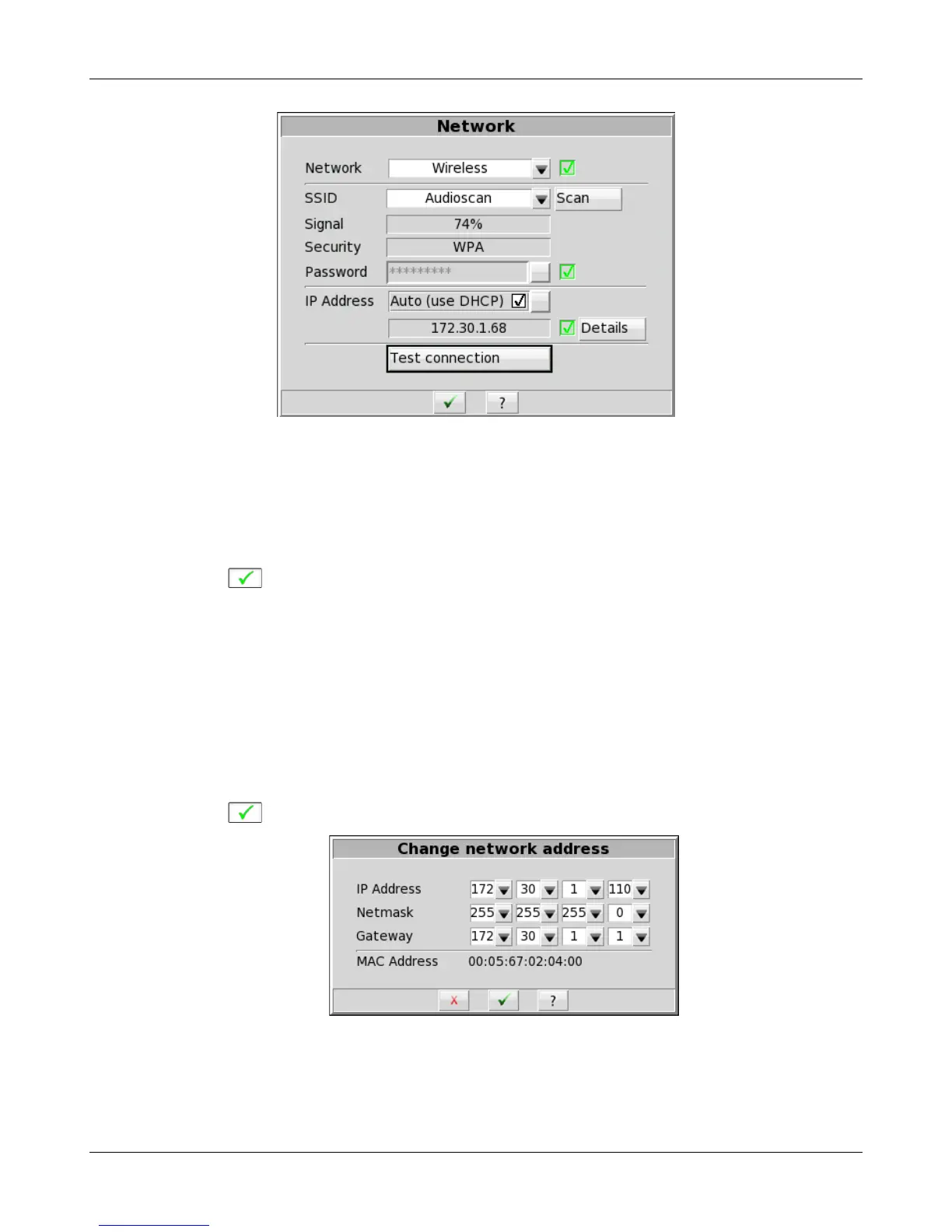
6. To assign a network address automatically using DHCP:
(a) Simply enable [Auto].
(b) Click [Test settings] to test your settings.
(c) If the test is successful, your Verifit network address will be displayed (e.g., 172.30.1.44).
(d) Click to continue.
Large, institutional computer networks sometimes use static address assignment. Ask your network
administrator for help in performing the following steps.
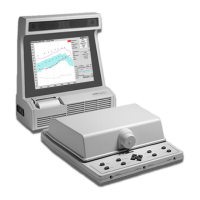
7. To assign a static network address:
(a) Disable Auto (DHCP).
(b) Click the [Change] button.
(c) Enter the network address details in the Change network address poster.
(d) Click to apply your changes.
Remote Operation
Once your Verifit is connected to a network, you can control it from any Windows PC using the Audioscan
Remote application, available at no cost from software update download page at www.audioscan.com. Remote
119


 To Next Page