Verifit
®
User's Guide Version 4.8 © November 2016
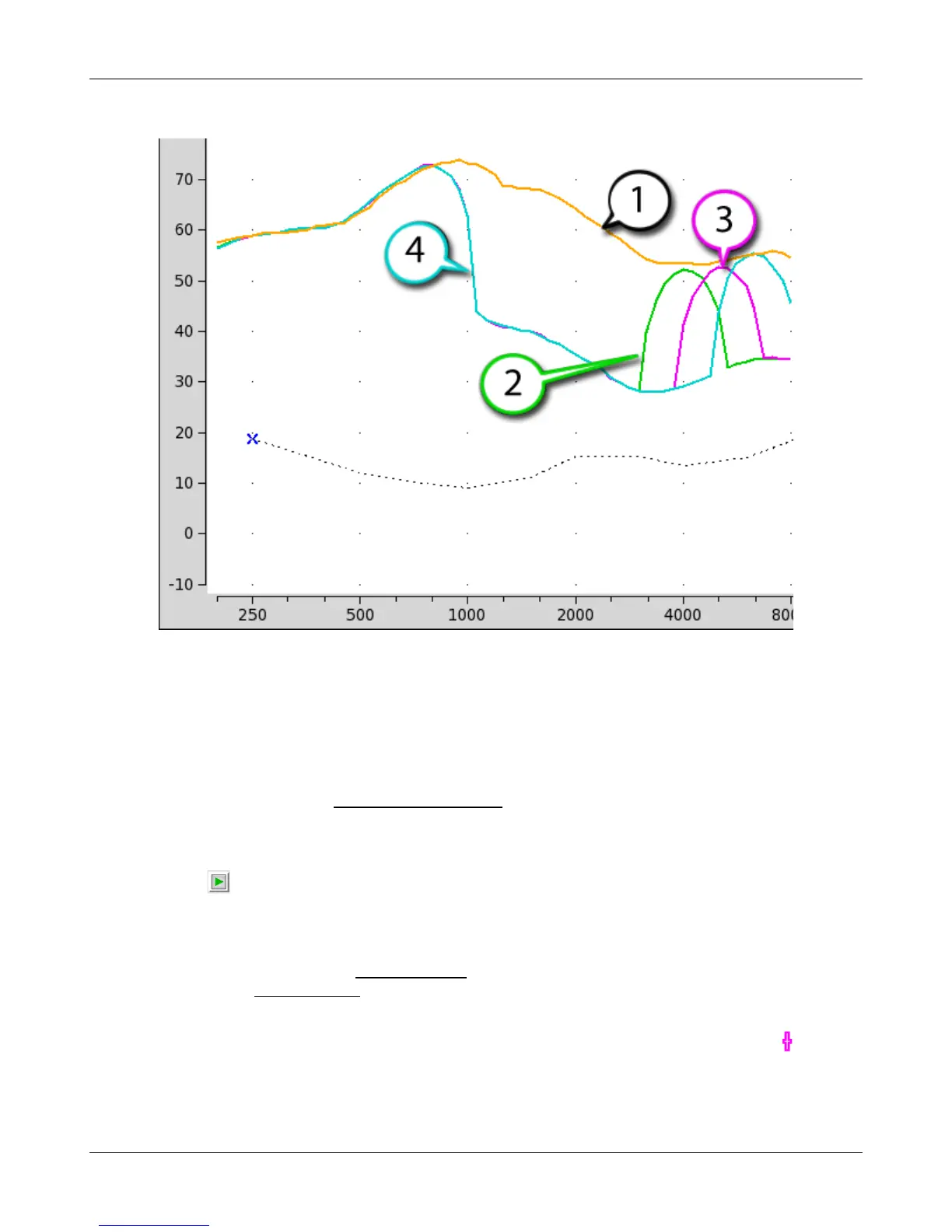
1. LTASS Speech-std(F), 2. LTASS Speech4000, 3. LTASS Speech5000, 4. LTASS Speech6300
Binaural fitting in Speechmap
When Speechmap is set to Dual view, it is possible to analyze both left and right hearing instruments
simultaneously.
1. Follow the instructions in Speechmap screen choices to enter audiometric data and select the fitting rule.
2. Click binaural link between the L and R selections. Both the L and R buttons will highlight when binaural
operation is active.
3. Click in any of the test areas to start a test. The output from both hearing instruments will be display
simultaneously.
4. Once the test is started, click the [Stimulus] list button to select the stimulus type. Click the [Level] list
button and select a stimulus level.. When you start a new test, the speech envelopes of the previous test may
be automatically hidden. See Speechmap Setup to change this behaviour. To change the default stimulus type
and level see Saving test setup.
5. While the passage is being presented, adjust the hearing instrument's frequency shaping and gain for average
sounds so that the middle curve (the LTASS) falls within the target range, shown by the symbols,
especially between 500 - 4000 Hz. These target symbols are automatically adjusted for the stimulus level you
select.
62


 To Next Page