Verifit
®
User's Guide Version 4.8 © November 2016
The Verifit automatically scans for the available domains, computers and shares. To enter the share name
directly, disable the checkbox, then type the printer or folder share name into the text field.
Test connection
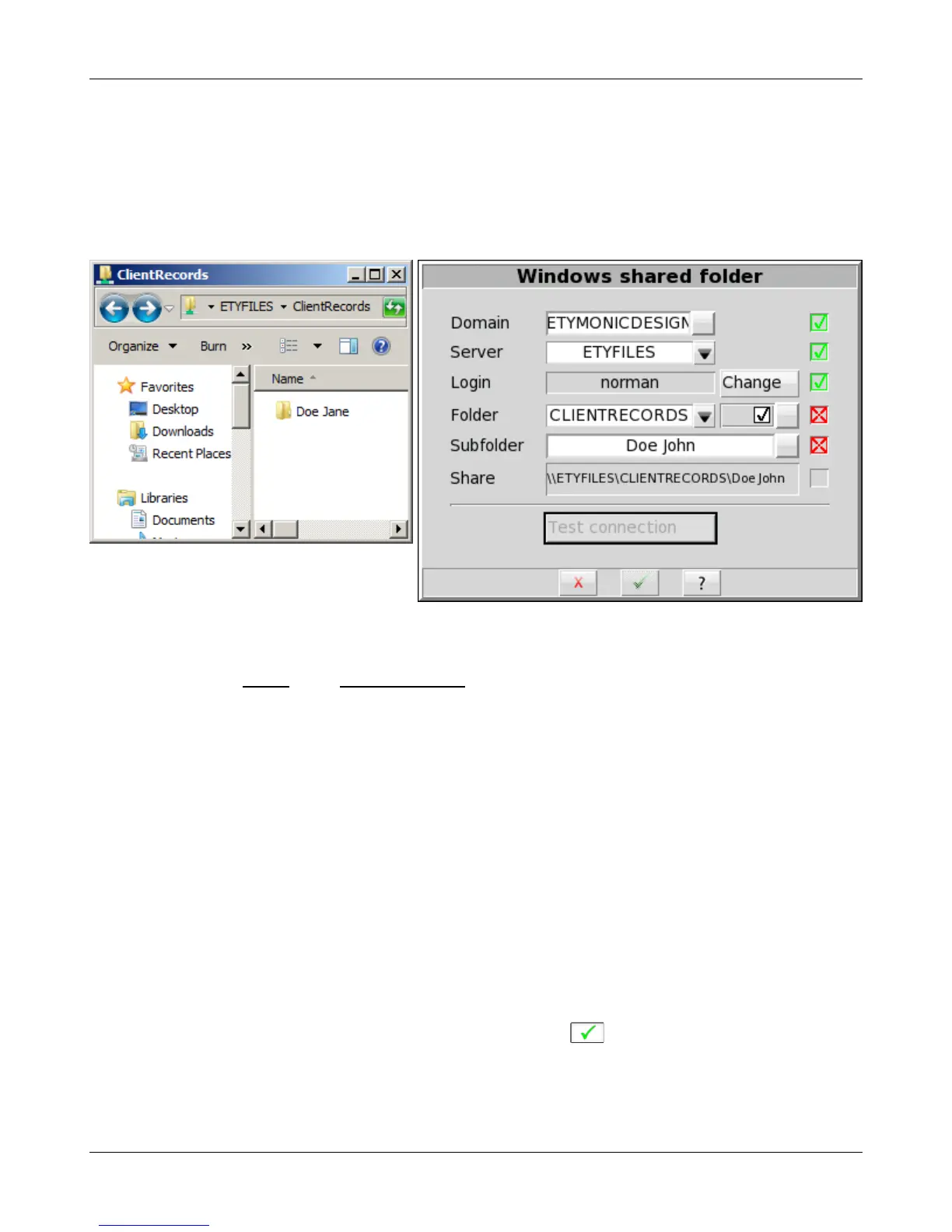
Once you have selected or entered all required details, click the [Test connection] to test the Windows shared
printer or folder. Any detail showing a red X indicates some error or omission which you need to correct before
saving the details.
Windows shared folder example - Missing subfolder
The following table indicates the possible causes of each failure, and the corrective steps.
Failure Cause / Correction
Server The server cannot be found in the specified domain:
Change the server
Change the domain
Login The username and/or password are not authorized for the server:
Change the server
Change the username and/or change the password
Printer The printer cannot be found on the selected server:
Change the printer
Folder The folder or subfolder cannot be found on the selected server:
Change the folder
Change the folder permissions on the server
Change the subfolder
Create the subfolder on the server
Change the subfolder permissions on the server
Once you have selected or entered all of the required details, click to save the Windows Share settings.
132


 To Next Page