Verifit
®
User's Guide Version 4.8 © November 2016
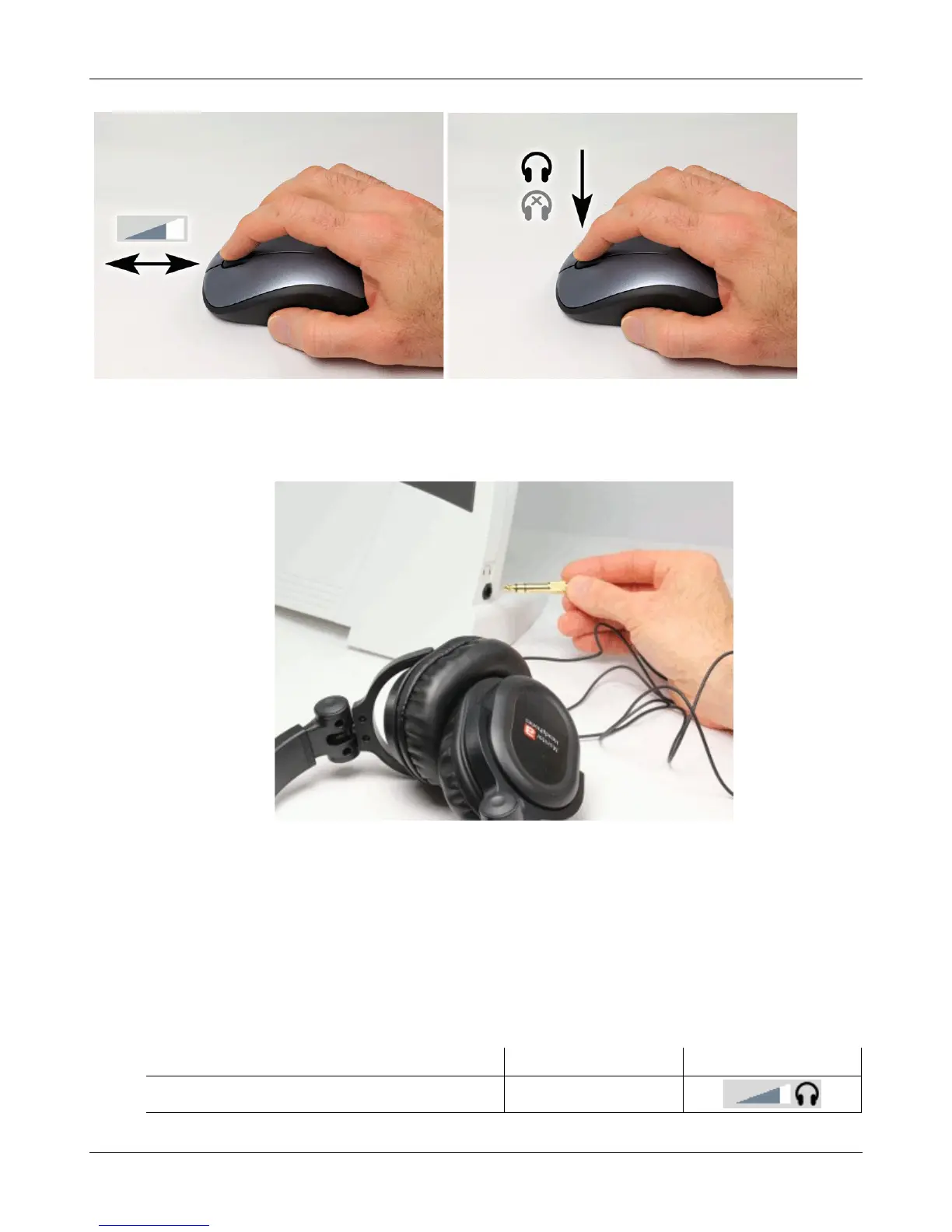
To connect the monitor headphones, insert the headphone plug into the stereo jack on the lower right-hand side
of the display unit.
In Dual View of most applications the monitor headphones present the left and right microphone signals to the
left and right sides of the headphones. You can optionally focus your listening attention by selecting only the
left or right microphone signals. By repeatedly clicking the mouse wheel, you rotate your selection among the
binaural, left-only, right-only and muted headphone presentation options.
In Single View or in Dual View when only L or R is selected, the monitor headphones present the same signal to
both ears, as indicated by the solid black headphone icon.
The following table outlines the headphone presentation options and the corresponding microphone signals for
each ear.
Selection Left ear Right ear Presentation
Monaural Active mic Active mic
26


 To Next Page