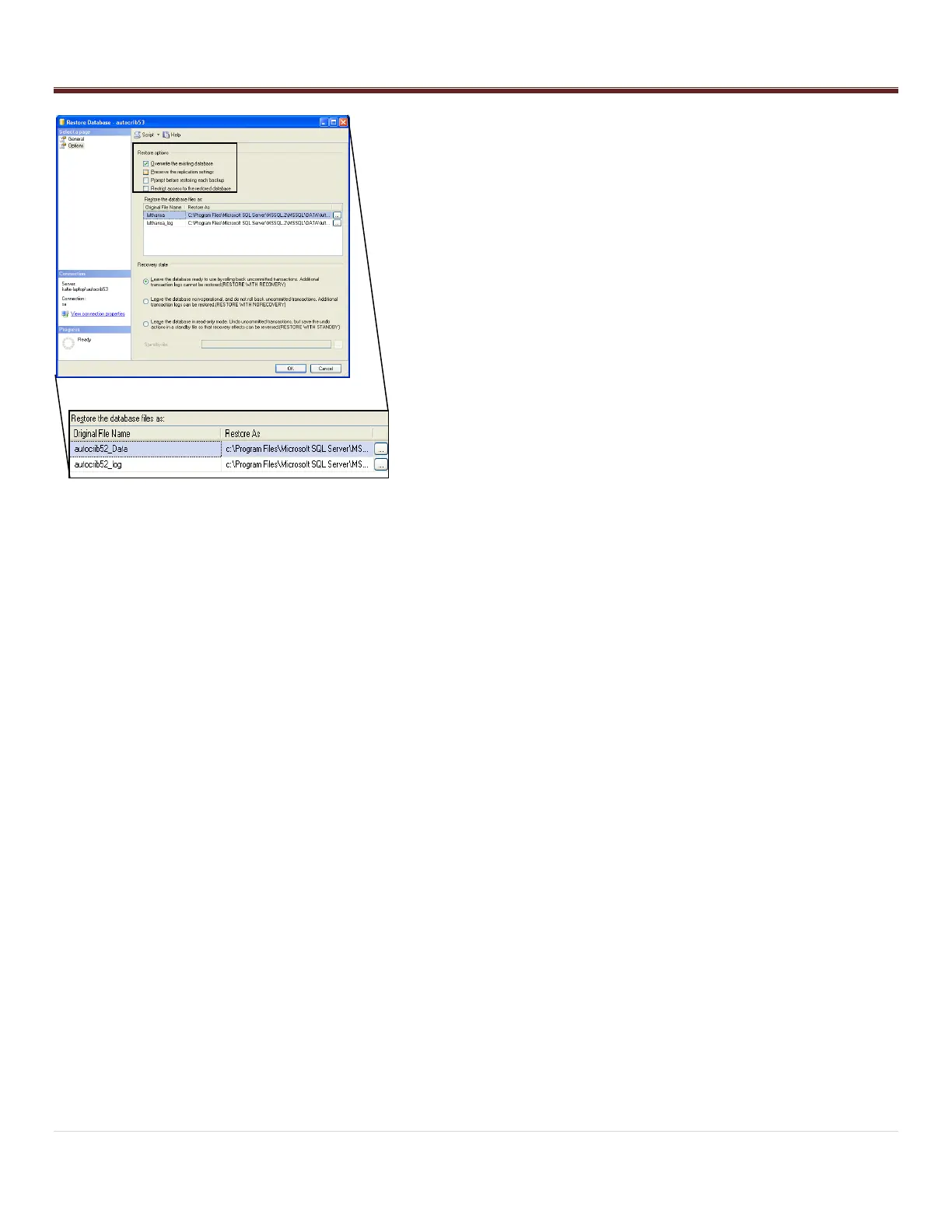
- Within the „Restore Options‟ menu, check “Overwrite the
existing database”.
- Within the „Restore the database files as:‟ menu, select the
first browse button.
o Locate the autocrib53_Data.mdf or autocrib53.mdf file
located in:
C:\Program Files\Microsoft SQL Server\MSSQL.1\MSSQL\Data
Then, select “OK”.
o Select the second browse button, and locate the
autocrib53_log.ldf file located in:
C:\Program Files\Microsoft SQL Server\MSSQL.1\MSSQL\Data
The, select “OK”.
- Under the „Recovery state‟ menu, verify “Leave the database
ready to use by rolling back uncommitted transactions.
Additional transaction logs cannot be restored. (RESTORE
WITH RECOVERY)” is selected.
- Select “OK”.
- Once the message “The restore of database „autocrib53‟
completed successfully” appears, select “OK”.
CONGRATULATIONS!!! The database has now been restored and
you are ready to begin using the AutoCrib software.
- Start the AutoCrib software.
NOTE: If the AutoCrib software prompts for the server,
database name, username, and password, insert the following.
Server: (LOCAL)\AUTOCRIB53
Database Name: autocrib53
Username: sa
Password: AutoCrib2005


 To Next Page