EasyManua.ls Logo

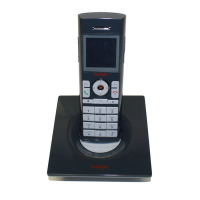
Avaya 3735 - User Manual

Avaya 3735
135 pages
Print Icon
To Next Page IconTo Next Page
Loading...
Using Avaya 3735 DECT handsets
connected to Avaya Aura
®
Communication Manager and IP Office
Release 4.7.1
Issue 1
August 2019

Table of Contents

Other manuals for Avaya 3735

Questions and Answers

  • A
    amandaelliottAug 13, 2025
    What to do if my Avaya Handsets headset can not connect?
    • M
      Matthew HowellAug 13, 2025
      If your Avaya Handsets headset won't connect, there might be several reasons: * Ensure the handset is turned on. * Make sure the handset is close enough to the headset. * Check if the Bluetooth module is enabled in the Bluetooth menu. * Disconnect any other headset already connected to the handset. * Repeat the pairing procedure if the link key is missing. * Move away from interfering devices like WLAN equipment or microwaves.
  • H
    hunter84Aug 17, 2025
    Why does my Avaya Handsets headset keep failing to connect?
    • L
      lopezdouglasAug 17, 2025
      If your Avaya Handsets headset persistently fails to connect, consider these potential causes: * Ensure the headset is turned on. * Move the headset closer to the handset. * Repeat the pairing procedure if the link key in the headset has been deleted. * Disconnect the headset from any other handset it might be connected to. * Move away from interfering devices such as WLAN equipment or microwaves.
  • D
    Dr. Makayla RushAug 20, 2025
    What to do if my Avaya 3735 IP Phone headset fails to connect?
    • N
      newtonjenniferAug 21, 2025
      If your Avaya IP Phone headset fails to connect, there might be several reasons: * The headset might not be turned on, so ensure the headset is powered on. * The headset could be out of range; try moving it closer to the handset. * The link key in the headset might have been deleted; in this case, repeat the pairing procedure. * The headset might already be connected to another handset; disconnect it from the other handset. * Disturbing devices might be too close, such as WLAN equipment or a microwave. Try moving away from such devices.
  • T
    timothy42Aug 25, 2025
    Why Avaya IP Phone headset can't connect to the handset?
    • A
      Aaron VangAug 25, 2025
      If your Avaya IP Phone headset cannot connect to the handset, consider the following: * Ensure the handset is turned on. * The handset might be out of range; move it closer to the headset. * The Bluetooth module might be disabled; enable Bluetooth in the Bluetooth menu. * Another headset might already be connected; disconnect the currently connected headset. * The link key might be missing; repeat the pairing procedure. * Disturbing devices might be too close, such as WLAN equipment or a microwave. Try moving away from such devices.
  • J
    Jeremiah Watson Jr.Aug 28, 2025
    What to do if Avaya 3735 IP Phone says no headset found?
    • K
      Katherine AllenAug 28, 2025
      If your Avaya IP Phone indicates that no headset is found, check the following: * Ensure the headset is turned on. * Check if the headset is out of battery and charge it if necessary. * The headset might be out of range; move it closer to the handset (less than 10 meters). * The headset might not be in pairing mode; turn the headset into pairing mode.
  • K
    katherineashleySep 1, 2025
    How to fix Avaya IP Phone pairing fails?
    • A
      Alan DownsSep 1, 2025
      If pairing fails on your Avaya IP Phone, it could be due to these reasons: * The headset is not in pairing mode. Turn the headset into pairing or discoverable mode. * An incorrect PIN was entered. Try again and enter the correct PIN.
  • D
    Dustin WhiteSep 4, 2025
    What to do if my Avaya Handsets headset is not found?
    • A
      Angelica DavisSep 5, 2025
      If your Avaya Handsets headset is not being found, consider these potential causes: * The headset might be turned off, so turn it on. * The headset's battery may be depleted, so charge it. * The headset could be out of range; move it closer to the handset (within 10 meters). * The headset might not be in pairing mode, so put it into pairing mode.
  • B
    Bryan MooreSep 8, 2025
    What to do if I enter the incorrect PIN on Avaya Handsets?
    • C
      Colleen HughesSep 8, 2025
      Try again and enter the correct PIN. Consult the headset user guide for pairing instructions.

Summary

Chapter 1: Introduction

Purpose

Describes how to use product features and capabilities.

Chapter 2: Avaya 3735 DECT handset overview

3735 DECT handset physical layout

Details the physical components and buttons of the 3735 DECT handset.

Functions

Lists and describes the features available on the 3735 DECT handset.

Accessories

Details optional accessories available for the 3735 DECT handset.

Chapter 3: Menu Tree

Settings

Covers various handset settings including sound, alerts, and display.

Calls

Explains call lists, call time, and call services menu options.

Contacts

Details managing contacts, including adding, editing, and searching.

Chapter 4: Basic operation

Locking and unlocking the keypad

Provides procedures for locking and unlocking the handset keypad.

Locking and Unlocking the handset

Explains how to protect the handset from unauthorized use via phone lock.

Chapter 5: Configuring Bluetooth Headset

Pairing or connecting Bluetooth headset

Guides users on how to pair a Bluetooth headset with the handset.

Making a call

Details the process of making calls using the handset or Bluetooth headset.

Volume and Mute Control

Explains how to adjust volume and mute the microphone during calls.

Chapter 6: Menu operation

Managing incoming calls

Covers answering, declining, and managing incoming calls.

Managing call list

Details viewing, editing, saving, and deleting call list entries.

Managing Mid-call operations

Explains actions that can be performed during an active call.

Managing outgoing calls

Calling a number from contacts

Guides on how to call contacts stored in the phonebook.

Managing contacts

Covers adding, editing, and deleting contacts in the local phonebook.

Managing shortcuts

Defining soft keys

Explains how to configure functions for the handset's soft keys.

Managing messages

Inbox

Details how to read, reply, delete, and forward messages.

Message templates

Explains the use of predefined messages for quick communication.

Voice mail

Receiving a voicemail

Describes how voicemail notifications are indicated and accessed.

Checking the voicemail inbox

Provides steps to check messages in the voicemail inbox.

Managing profiles

Activating a profile

Explains how to activate custom profiles on the handset.

Alarm operation

Activating an alarm

Details how to trigger an alarm from the handset.

Troubleshooting

Operational problems

Lists common operational problems and their solutions.

Error or warning messages

Explains error and warning messages displayed by the handset.

Chapter 7: Customizing Avaya 3735 DECT handset

Sound and alert settings

Covers adjusting ring volume, signals, and message alerts.

Keypad lock settings

Explains how to configure automatic keypad locking.

Phone lock settings

Details how to activate and manage automatic phone lock.

Display settings

Covers screen saver, brightness, text rotation, and font style.

Time and date settings

Explains how to set time and date formats.

Call answering settings

Covers configuring call answering key and behavior.

Alarm settings

Details how to edit alarm data.

Chapter 8: Maintenance

Maintenance of Batteries

Provides information on battery warnings, charging, and replacement.

Easy Replacement of Handset

Guides on procedures for easy replacement of a handset.

Chapter 9: Energy efficiency

Recommendations on how to save energy

Offers tips for conserving battery power and energy.

Appendix A: Safety Precautions

Safe operation

Provides essential guidelines for safe and efficient handset operation.

Exposure to radio frequency signals

Details RF exposure limits and compliance information.

FCC and IC compliance statements

Lists FCC and IC compliance statements for the device.

Glossary

Device Manager

Defines Device Manager as an application for managing handsets and racks.

Avaya 3735 Specifications

General IconGeneral
Handset typeWireless handset
Product typeIP Phone
Product colorBlack
Wi-FiNo
BluetoothYes
Standby time235 h
Display diagonal2 \
Phonebook capacity250 entries
Number of VoIP accounts-
Battery recharge time4 h
Number of handles included1 pc(s)
Storage temperature (T-T)-20 - 60 °C
Operating temperature (T-T)0 - 40 °C
Harmonized System (HS) code85171800
Weight and Dimensions IconWeight and Dimensions
Depth21.5 mm
Width52 mm
Height137 mm
Weight113 g

Related product manuals