Reconnection
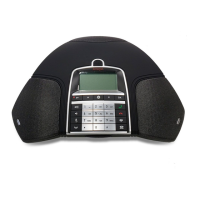
You can reconnect your Bluetooth device to B199 Conference Phone if the two devices are in a
paired state. You can reconnect B199 Conference Phone to the paired Bluetooth device only from
the paired Bluetooth device.
Disconnecting Bluetooth devices
About this task
You can disconnect Avaya Conference Phone B199 from your Bluetooth device.
When you end the connection between Avaya Conference Phone B199 and your Bluetooth
device, the two devices remain in the paired state.
Note:
Disconnecting the devices using this procedure does not affect the connection to Avaya
®
Conference Assistant.
Before you begin
Ensure that B199 Conference Phone and the Bluetooth device are in the connected state.
Procedure
1. Tap Settings > Bluetooth > Disconnect Device.
The phone displays the following question: Disconnect device <Bluetooth Device
Name>?
If B199 Conference Phone and the Bluetooth device are not paired and connected, the
phone displays the following message: Not connected.
2. Tap Ok to confirm disconnection.
B199 Conference Phone displays Disconnected and then stops displaying the Bluetooth
icon.
Tip:
To cancel the disconnection, tap Cancel.
Removing Bluetooth pairing
About this task
You can remove the pairing between Avaya Conference Phone B199 and your other Bluetooth
device to delete unwanted pairings.
B199 Conference Phone also deletes the Bluetooth pairing information when the phone
administrator resets the phone to factory settings or performs the system recovery.
Bluetooth connection
August 2020 Using Avaya Conference Phone B199 43
Comments on this document? infodev@avaya.com


 To Next Page