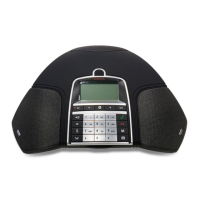
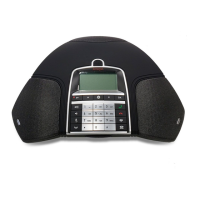
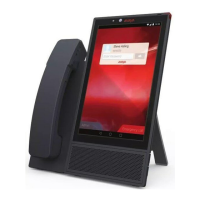
• To disconnect from B199 Conference Phone, do one of the following:
- Tap Conference Assistant > Disconnect Device.
- Tap Settings > Conference Assistant > Disconnect Device.
The phone displays the following question: Disconnect device <Device Name>?
To confirm, tap Ok.
The phone shows the Avaya
®
Conference Assistant icon and informs that the application is
disconnected.
Deleting pairing
About this task
Use this procedure to delete the pairing between the conference phone and the mobile device.
You can delete the paring only from the conference phone.
Before you begin
Pair Avaya Conference Phone B199 with a mobile device with Avaya
®
Conference Assistant.
Procedure
1. To delete the pairing from the conference phone, on the home screen, do one of the
following:
• Tap Conference Assistant.
• Tap Settings > Conference Assistant.
2. Tap Remove Bonding Information.
3. Tap Ok to confirm removal of all bonding information from the device.
This function both disconnects the current connection and deletes the pairing. You must
start a new pairing process the next time you want to connect to the phone.
Checking the calendar and scheduled events
About this task
Use this procedure to check your calendar on your mobile device with Avaya
®
Conference
Assistant installed. Then you can arrange calls with the paired Avaya Conference Phone B199
and Avaya
®
Conference Assistant.
Before you begin
You must allow your mobile device with Avaya
®
Conference Assistant to connect to your calendar
and agenda.
Avaya
®
Conference Assistant
August 2020 Using Avaya Conference Phone B199 47
Comments on this document? infodev@avaya.com


 To Next Page