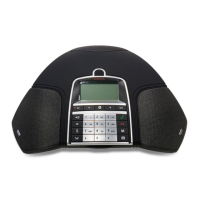
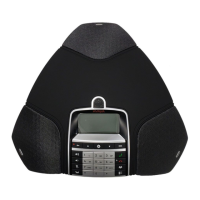
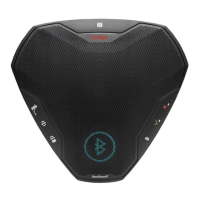
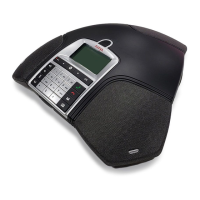
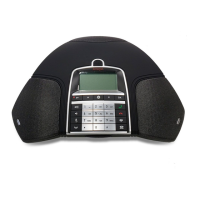
The procedure below describes how you can delete Bluetooth pairing from B199 Conference
Phone.
Note:
Removing Bluetooth pairing as described below does not affect Avaya
®
Conference Assistant
pairing information.
Before you begin
Ensure that B199 Conference Phone and the Bluetooth device are in the paired state.
Procedure
1. Tap Settings > Bluetooth > Remove pairing.
The phone displays the following question: Do you want to remove all Bluetooth
pairing information from the phone?
2. To confirm that you want to delete the Bluetooth pairing information, tap Ok.
The phone restarts the application to apply the changes.
Bridge connection
Avaya Conference Phone B199 supports bridging all connected devices within the external dial-in
conference calls. You can connect B199 Conference Phone to SIP server using Ethernet and also
connect B199 Conference Phone to a laptop, a deskphone or a PC using USB. B199 Conference
Phone can bridge all these connections together into a combined call.
When bridging your computer and the phone, you must activate both sources of sound. B199
Conference Phone can handle full duplex, echo cancellation, and noise reduction for all bridged
sound sources simultaneously. The sound from the bridged computer and SIP call can have
different levels. To hear all participants of the conference call clearly, adjust each sound source
individually.
Note:
B199 Conference Phone does not support bridging of Bluetooth calls with SIP and USB calls.
Connectivity
August 2020 Using Avaya Conference Phone B199 44
Comments on this document? infodev@avaya.com


 To Next Page