Procedure
1. On your mobile device, open Avaya
®
Conference Assistant.
2. Tap the Calendar icon.
The mobile phone shows all calendar events on the screen. Some of these events are
meeting invitations with the meeting information included. In the Overview tab, you see the
time, duration, and title of the meeting. In the Participants tab, the application shows the list
of persons invited to the meeting.
3. Select a conference call from the list.
The mobile phone displays an overview and a list of other participants of the conference
call. Avaya
®
Conference Assistant finds the phone numbers, PIN codes, and meeting links
in the calendar.
Participating in a conference call from the calendar
About this task
Use this procedure to participate in a conference call from the calendar accessible with Avaya
®
Conference Assistant.
Before you begin
Your calendar must contain an invitation to a conference call. The contact information in the
conference invitation must comply with the E164 international phone number standard. This
guarantees that Avaya
®
Conference Assistant interprets the information correctly.
Procedure
1. After you receive a notification about the upcoming conference call on your mobile device,
open Avaya
®
Conference Assistant.
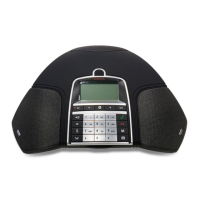
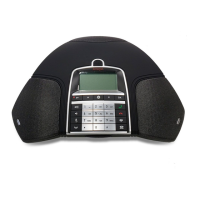
The application finds the closest Avaya Conference Phone B199.
2. In the conference room, pair Avaya
®
Conference Assistant and Avaya Conference Phone
B199.
3. Connect to the meeting from the mobile device by tapping the conference in the calendar.
Avaya
®
Conference Assistant dials the phone number and enters the PIN code from the
conference call invitation.
Starting an unscheduled call
About this task
Use this procedure to start a call that is not scheduled in the calendar. You will have complete
control over Avaya Conference Phone B199 during the call from your mobile device with Avaya
®
Conference Assistant installed.
Phone management application
August 2020 Using Avaya Conference Phone B199 48
Comments on this document? infodev@avaya.com


 To Next Page