Before you begin
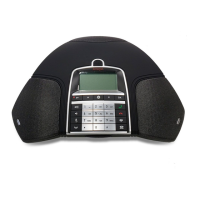
Ensure that Avaya Conference Phone B199 is paired with Avaya
®
Conference Assistant.
Procedure
1. Do one of the following to choose a number to call:
• Select a number from your Contacts list.
• Select a number from your Favorites list.
• Select a number from the your recent calls list.
• Dial a number using the keypad.
The phone dials the number, and the call starts. The screen displays the name and the
number of the person called.
2. (Optional) Do one or more of the following:
a. Adjust the volume on the screen of you mobile device by moving the Volume up
slider.
b. Add additional participants by tapping the Add Participant icon.
c. Split the conference call to separate calls by tapping Split.
d. Mute the microphone by tapping Microphone Muted. To unmute, tap Microphone
Muted again.
e. Enter Dual Tone Multi Frequency (DTMF) digits by tapping Keypad.
f. Put the call for any participant on hold by tapping Arrow down > Hold.
g. Talk to any participant in private by tapping Arrow down > Talk Private.
h. Disconnect any participant from the call by tapping Arrow down > Hang Up.
3. To end the call, tap the Hang Up icon.
Managing contacts
About this task
Use this procedure to manage contacts with Avaya
®
Conference Assistant.
Procedure
1. On your mobile device, open Avaya
®
Conference Assistant.
2. Tap the Contacts icon.
3. To add a contact to your favorite contacts list, tap the Contacts tab and press the star
symbol near the selected contact.
4. To open a list of your favorite contacts, tap Favorites.
5. To create a new conference group in the phone book, tap Groups > Plus on the screen.
Avaya
®
Conference Assistant
August 2020 Using Avaya Conference Phone B199 49
Comments on this document? infodev@avaya.com


 To Next Page