Avery
®
Personal Label Printer
45
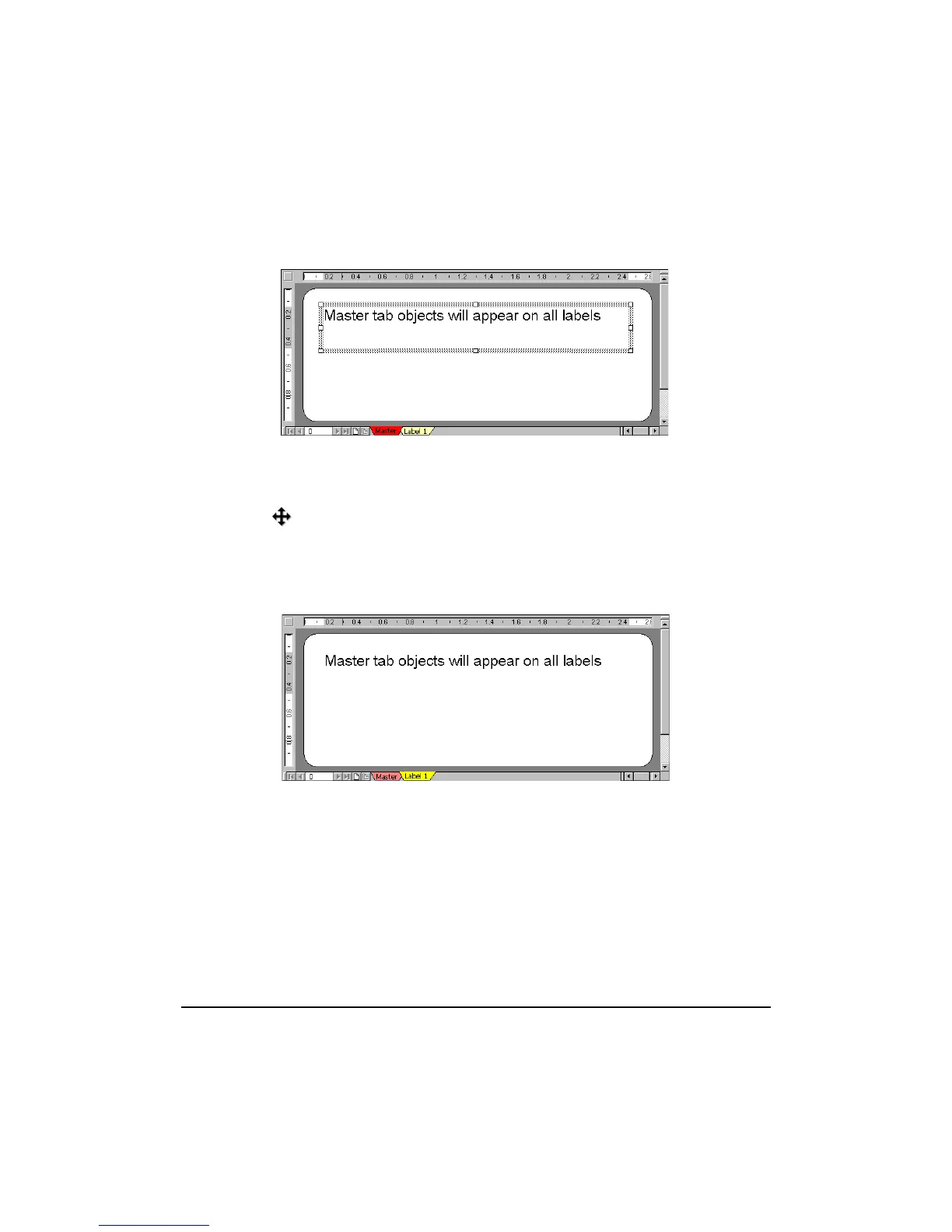
6. Type the following text in the text object: Master tab objects will appear on all labels.
Move and resize the text object to fit on the upper part of the label template as illustrated.
7. Resizing and Moving Text Objects: To resize a text object, click and drag one of the eight
handles of the text object. Release the mouse and the object is resized. To move an object,
click on the object frame. Place the cursor on the edge of the object until it changes to a four-
arrow pointer . Click and drag the object to the new location. Release the mouse to
complete the move.
8. Click the Label 1 tab. Label 1 represents the first label on the sheet. The text object that
was placed on the Master tab also appears on Label 1. You cannot select or edit the text from
Label 1.
All objects placed on the Master tab can only be edited or deleted from the Master tab.
9. Select File > Print. Select Master Label Only. Under Number of Copies, select Sheets to
print the whole sheet of labels. Select Print Preview. Note that each label on the sheet
contains the text from the Master tab. You have created a sheet of identical labels. Click Close
to return to the Design screen without printing.










 To Next Page