Chapter 5: Pro Tools | MTRX Studio Front and Back Panels 23
Chapter 5: Pro Tools | MTRX Studio Front and
Back Panels
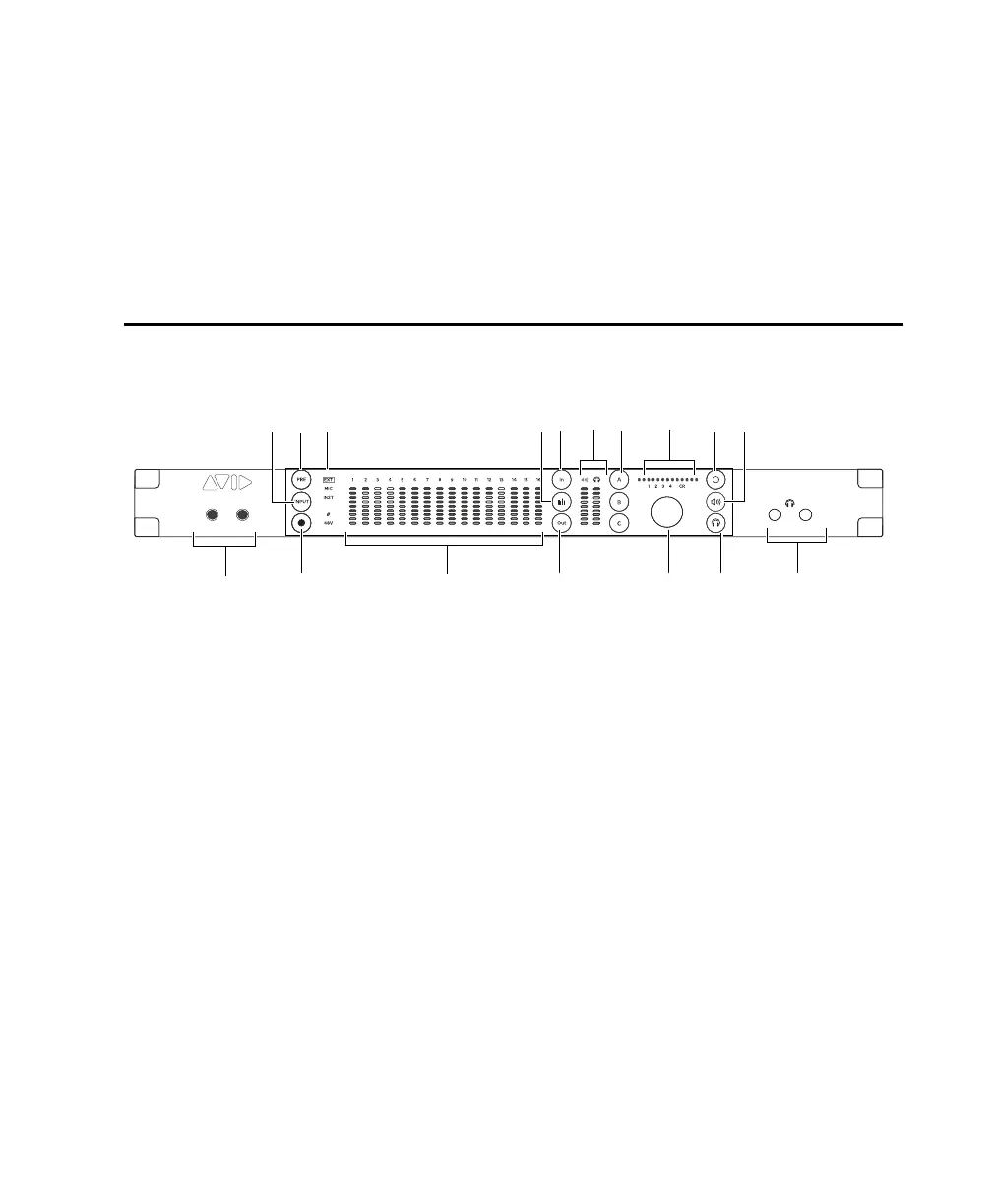
Pro Tools | MTRX Studio Front Panel
1 Instrument inputs 1 and 2 (mono 1/4-inch). These inputs are shared with the Mic inputs on the back
panel, select INST inputs to use these inputs.
2 Power button.
3 INPUT button — Toggles Mic/Inst inputs 1 and 2 between INST (front panel) or MIC (back panel) when
PRE is activated. Press the Select button (14) to toggle between channels 1 and 2 (the number for the
corresponding channel illuminates above the encoder (13). If the channels are linked, the
INPUT button
toggles both channels in tandem.
4 PRE button — When activated, the PRE button lights green and you can change the input settings for
Mic/Inst inputs 1 and 2. Press the
Select button (14) to switch between channel 1 and channel 2. Press
INPUT (3) to toggle between INST (front panel) or MIC (back panel). Press the A button (11) to link or
unlink channels 1 and 2. Press
B to enable or disable Ø. Press C to switch 48V (phantom power) on or
off. Use the encoder (13) and the horizontal meter (12) to adjust input levels.
Pro Tools | MTRX Studio front panel
1
2
Pro Tools
®
| MTRX Studio
1
2
INST
LINK
1
2
3
4 5
6 7
10
13 16 17
8 9 11 14 1512



 To Next Page