Chapter 5: Additional Operational Information 51
To select an HD video format:
1 Select HD Video (“Hd UidEo”), using the Set,
Down, and Up switches.
2 Press Set.
3 Use the Down and Up switches to select an
video reference rate.
4 Press Set. The SYNC HD will retain the setting,
even when the unit is powered off and on again,
until it is changed.
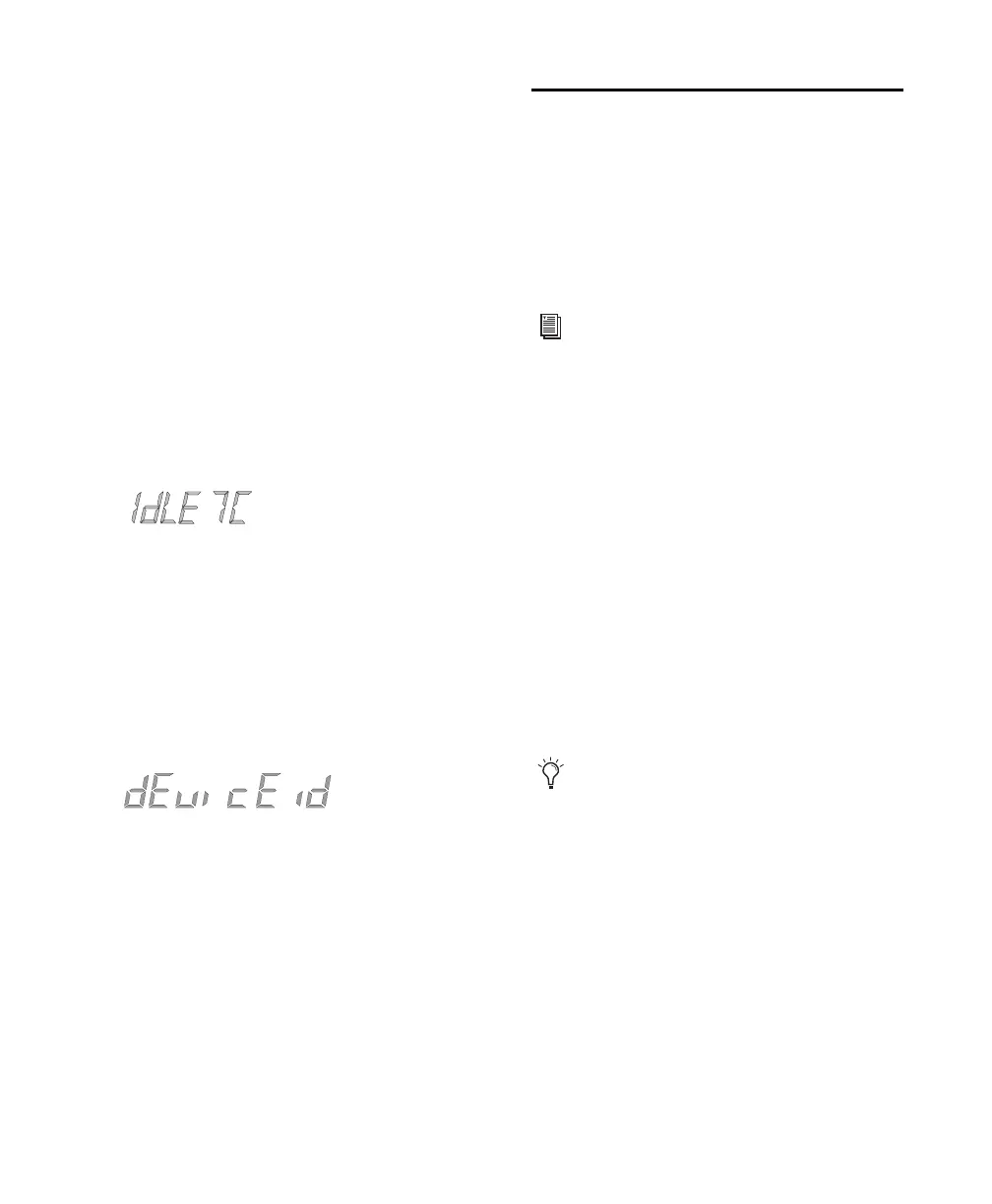
MTC Idle Mute
MTC is output constantly whenever the SYNC HD
is generating timecode. Optionally, this output can
be muted when timecode (LTC) is idle.
See “MTC Output and Idle Muting” on page 42.
Device ID
(SYNC HD Only)
Toggles the device ID of the SYNC HD between
SYNC HD (for use with Pro Tools 7.4 or higher)
and SYNC I/O (for use with Pro Tools 7.3 or
lower).
See “Emulating a SYNC I/O” on page 9.
Using Fader Start
Fader Start allows faders in Pro Tools to trigger
external devices to play and stop.
SYNC HD has six GPI outputs in total: two TTL-
level and four relays. Together, this combination
of outputs makes it possible to provide Fader Start
capability.
To implement Fader Start, Pro Tools maps the first
two visible auxiliary input channels in a session to
GPI Relay outputs 0 and 1 (first being left-to-right
in the Mix window, top-to-bottom in the Edit win-
dow).
Example Fader Start Application
In a typical scenario, the Fader Start feature con-
trols playback of a CD player. The CD player out-
puts are routed into a Pro Tools stereo Aux Input.
As the Aux channel fader is moved above
–120 dB, playback of the CD player is automati-
cally triggered. Likewise, as the fader is moved be-
low –120 dB, playback is automatically stopped.
Utilization of Fader Start has specific wiring
requirements. See “GPI Relay Wiring for
Fader-Start” on page 79.
To rearrange tracks, drag the Track Name
left or right in the Mix window, or up or down
in the Edit window. See the
Pro Tools Refer-
ence Guide
for more information.


 To Next Page