Pro Tools | SYNC HD Guide10
Configuring a SYNC HD from
Pro Tools
Pro Tools HD software provides configuration
controls that establish communication between
Pro Tools and the SYNC HD.
Loop Sync
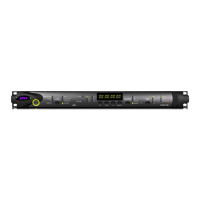
SYNC HD supports the Loop Sync feature for
connecting HD interfaces. A SYNC HD can be
configured as the Clock Source (Loop Master) in
order to provide Loop Sync master clock to the rest
of your Avid HD audio interfaces.
Pro Tools automatically recognizes if a SYNC HD
is connected to the serial port on the first HDX
card, HD Native PCIe card, or HD Native Thun-
derbolt peripheral when Pro Tools is launched.
When Pro Tools recognizes the SYNC HD, it au-
tomatically configures the Device and Port settings
for it in the Peripherals dialog.
To check communication between Pro Tools and a
SYNC HD:
1 After installing Pro Tools and connecting the
SYNC HD, launch Pro Tools.
2 Choose Setup > Peripherals, and click the Syn-
chronization tab.
3 Under Synchronization Device, select Enable
SYNC HD
(for a SYNC HD).
Pro Tools scans the serial port on the first HDX
card, HD Native PCIe card, or HD Native Thun-
derbolt peripheral and checks the SYNC HD firm-
ware.
If you need to update your firmware, use the Avid
DigiTest application installed with Pro Tools. See
“Updating SYNC HD Firmware” on page 9.
For system requirements and Loop Sync
connection instructions, see Chapter 1,
“Introduction.”
SYNC HD settings in the Peripherals dialog


 To Next Page
