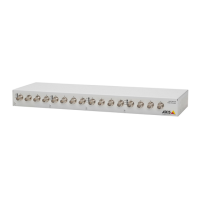
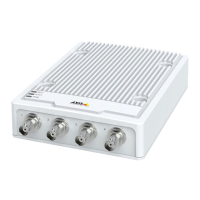
AXIS M7014
Troubleshooting
Multicast H.264 only
accessible by local clients
Check if your router supports multicasting, or if the router settings between the client and the
product need to be configured. The TTL (Time To Live ) value may need to be increased.
Poor rendering of H .264
images
Color depth set incorrectly on clients. Set to 16–bit or 32–bit color.
If text overlays are blurred, or if there a re other rendering problems, you may need to enable
Advanced Video Rendering fromv the Video tab in the AMC Control Panel.
Ensure that your graphics ca rd is using the latest drive r. The la test drivers can usually be
downloaded fro m the manufacturer’s website.
Color saturation is different
in H.264 and Motion JPEG
Modify the settings for your graphics adapter. Refer to the adapter’s documentation for more
information.
Lower frame rate than
expected
Reduce the number of applications running on the client computer.
Limit the number of simultaneous v iewers.
Check with the network administrator that there is enough b andwidth available.
Check in the AMC Control Panel (H.264 tag) that video processing is NOT set to Decode only
key frames.
Lower the image resolution.
Why do I not get maximum
frames per second?
See Performance considerations, on page 44.
The maximum frames per se cond is dependent on the utility frequency (60/50 Hz) of the Axis
product. See Technical Specifications, on page 43.
Image degeneration
Decrease the GOV length. Go to Video > Video Stream and select the H.264 tab to modify the
GOV length.
Status and Network indicator LEDs are flashing red rapidly
Hardware failure
Contact your Axis reseller.
Status indicator LED is flashing red a nd the product is inaccessible
A firmware upgrade has
been interrupted or the
firmware has otherwise been
damaged
See Emergency recovery procedure, on page 39.
No images displayed on web page
Problems with AXIS Media
Control (Internet Explorer
only)
To enable the u pdating of
video images in Internet Explorer, set the browser to allow ActiveX
controls. Also, make sure that AXIS Media Control is installed on your co m puter.
Installat
ion of additional
ActiveX component
restricted or prohibited
Configure the Axis product to use a Java applet for updating vid eo images in Internet Explorer. Go
to Setup > Live View Config and select J ava applet under Default viewer.
Video and image problems, general
Image too dark or too light
Check the video stream and camera settings under Setup > Video > Video Stream and Setup >
Video > Camera Settings.
Missing images in uploads This can occur when tr ying to use a larger image buffer than is actually available. Try lowering
the frame rate or the upload period.
41



 To Next Page