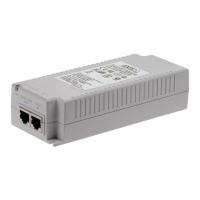
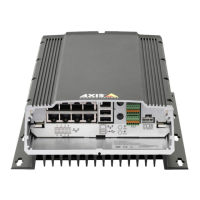
AXIS Camera Station S2216 Mk II Appliance
Configur e your device
Server port conguration
AXIS Camera Station Pro server uses ports 55752 (HTTP), 55754 (T CP), 55756 (mobile communication), and 55757 (mobile streaming)
for communication between the server and the client. Y ou can change the ports in AXIS Camera Station Service Control if required.
Security considerations
T o prevent unauthorized access to cameras and recordings, keep the following in mind:
• Use strong passwords for all network devices (cameras, video encoders, and auxiliary devices).
• Install AXIS Camera Station S22 16 Mk II Appliance server , cameras, video encoders, and auxiliary devices on a secure
network separate from the ofce network. Y ou can install the AXIS Camera Station S22 16 Mk II Appliance client on a
computer on another network, for example, a network with internet access.
• Make sure all users have strong passwords. Windows® Active Directory provides a high level of security .
License a system online
T o use automatic licensing, you must register your system and connect it to an organization.
1. Go to Conguration > Licenses > Management .
2. Make sure Automatic licensing is on.
3. Click Register ... .
4. Sign in using your My Axis account and follow the onscreen instructions.
5. Click Go to AXIS License Manager to manage your licenses there. Read the My Systems user manual on help.axis.com for
more information.
License a system that's ofine
T o license your system manually:
1. Go to Conguration > Licenses > Management .
2. T urn off Automatic licensing .
3. Click Export system le... and save the le to your computer .
Note
Y ou must have an internet connection to access AXIS License Manager . If your client computer doesn’t have internet,
copy the system le to a computer that does.
4. Open AXIS License Manager .
5. In AXIS License Manager:
5.1 Select the correct organization, or create one if you haven’t already . Read the
My Systems user manual on help.axis.com for more information.
5.2 Go to System setup .
5.3 Click Upload system le .
5.4 Click Upload system le and select your system le.
5.5 Click Upload system le .
5.6 Click Download license le .
1 1



 To Next Page
 Loading...