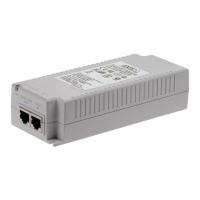
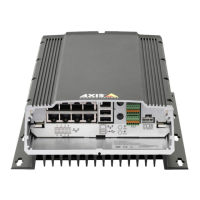
AXIS Camera Station S2216 Mk II Appliance
Manage your device
7.2 Click OK .
Add additional storage
The demand for storage can differ . Retention time of stored data or for storing high - resolution recordings often results in a need to
install more storage. This section explains how to install an additional hard drive in your AXIS S22 series product.
Note
Follow the instructions below to add additional storage to applicable AXIS S22 products. These instructions are as - is, and
Axis Communications AB takes no responsibility for loss of data or misconguration during these steps. The standard
precautions should be taken to backup data that is business critical. The following procedure of expanding storage will
not be supported by Axis T echnical Support.
Note
T o avoid electrostatic discharge, we recommend that you always use a static mat and static strap while working on internal
system components.
W arranty
Detailed information about warranty is available at: www .axis.com/support/warranty .
T o watch this video, go to the web version of this document.
help.axis.com/?&piaId=90 766§ion=add - an - additional - storage
Remove the bezel
1. Loosen the two thumbscrews located at each side of the bezel.
2. Remove the bezel.
Install the hard drive
CAUTION
• Use only hard drives that have been tested and approved for use with AXIS S22 series.
• When you install a hard drive, make sure that the hard drive carrier is pushed all the way in. Y ou will hear a click when
the drive carrier is locked.
• Before you install a hard drive, make sure the power cord is disconnected.
1. Shut down the system and make sure the power is off.
2. Disconnect the power cord.
3. Press the release button on the front of the hard drive carrier and open the hard drive carrier handle.
4. Pull out the hard drive carrier using the handle.
5. Insert a hard drive in the hard drive carrier .
20


 To Next Page
 Loading...