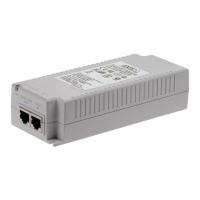
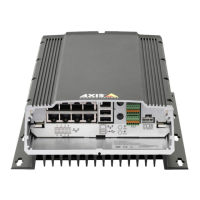
AXIS Camera Station S2216 Mk II Appliance
Manage AXIS Camera Station Pr o user accounts
Manage AXIS Camera Station Pr o user accounts
Congure user permissions
Go to Conguration > Security > User permissions to view the users and groups that exists in AXIS Camera Station S22 16 Mk
II Appliance.
Note
Administrators of the computer that runs AXIS Camera Station S22 16 Mk II Appliance server are automatically given
administrator privileges to AXIS Camera Station S22 16 Mk II Appliance. Y ou can’t change or remove the Administrators
group's privileges.
Before you can add a user or group, register the user or group on the local computer or make sure they have an Windows® Active
Directory user account. T o add users or groups, see .
When a user is part of a group, the user gets the highest role permission assigned to the individual or the group. The user also gets the
access granted as an individual and receives the rights as part of a group. For example, a user has access to camera X as an individual.
The user is also a member of a group that has access to cameras Y and Z. The user therefore has access to cameras X, Y , and Z.
Indicates the entry is a single user .
Indicates the entry is a group.
Name Username as it appears in the local computer or Active Directory .
Domain The domain that the user or group belongs to.
Role
The access role given to the user or group. P ossible values: Administrator , Operator , and
Viewer .
Details Detailed user information as it appears in the local computer or Active Directory .
Server
The server that the user or group belongs to.
Add users or groups
Microsoft Windows® and Active Directory users and groups can access AXIS Camera Station S22 16 Mk II Appliance. T o add a user to
AXIS Camera Station S22 16 Mk II Appliance, you must add users or a group to Windows®.
T o add a user in Windows® vary depending on which version of Windows® you use. Follow the instructions on Microsoft's site . If you
use an Active Directory domain network, consult your network administrator
Add users or groups
1. Go to Conguration > Security > User permissions .
2. Click Add .
Y ou can see the available users and groups in the list.
3. Under Scope , select where to search for users and groups.
4. Under Show , select to show users or groups.
The search result doesn’t display if there are too many users or groups. Use the lter function.
5. Select the users or groups and click Add .
15



 To Next Page
 Loading...