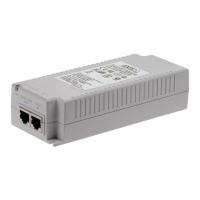
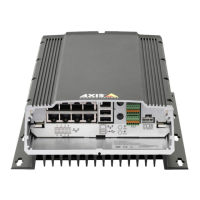
AXIS Camera Station S2216 Mk II Appliance
Configur e your device
Note
It’s not possible to delete a locked recording. T o unlock the recording, clear the option or delete the bookmark.
6. Click OK to save the bookmark.
Export recordings
1. Open a Recordings tab .
2. Select the camera you want to export recordings from.
3. Click to display the selection markers.
4. Drag the markers to include the recordings that you want to export.
5. Click to open the Export tab .
6. Click Export... .
Play and verify recordings in AXIS File Player
1. Go to the folder with the exported recordings.
2. Double - click AXIS File Player .
3. Click to show the recording’s notes.
4. T o verify the digital signature:
4.1 Go to T ools > V erify digital signature .
4.2 Select V alidate with password and enter your password.
4.3 Click V erify . The verication result page appears.
Note
Digital signature is different from Signed video. Signed video allows you to trace video back to the camera it came from,
making it possible to verify that the recording wasn't tampered with. See Signed video and the camera’s user manual for
more information.
Network conguration
Congure proxy or rewall settings before using AXIS Camera Station Pro if the AXIS Camera Station Pro client, AXIS Camera Station
Pro server , and the connected network devices are on different networks.
Client proxy settings
If the proxy server is between the client and the server , you must congure the proxy settings in Windows on the client computer .
Server proxy settings
If the proxy server is between the network device and the server , you must congure the proxy settings in Windows on the server .
NA T and Firewall
When a NA T , rewall, or similar separates the client and the server , congure the NA T or rewall to ensure that the HTTP port, T CP
port, and streaming port specied in AXIS Camera Station Service Control can pass through the rewall or NA T . Contact the network
administrator for instructions on conguring the NA T or rewall.
1 0



 To Next Page
 Loading...