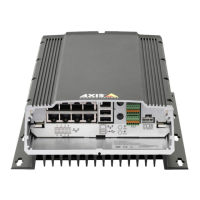
AXIS Camera Station S2216 Mk II Appliance
Manage Windows® user accounts
1. Go to Settings > Accounts > Other people .
2. Go to the account you want to remove and click Remove .
Change a user account's password
1. Log in with an administrator account.
2. Go to User Accounts > User Accounts > Manage another account in sequence .
Y ou’ll see a list with all user accounts on the device.
3. Select the user account whose password you would like to change.
4. Click Change the password .
5. Enter the new password and click Change password .
Create a password reset disk for a user account
W e recommend to create a password reset disk on a USB ash drive. With this, you can reset the password. Without a password reset
disk, you can’t reset the password.
Note
If you’re using Windows® 1 0, or later , you can add security questions to your local account in case you forget your password,
so you don't need to create a password reset disk. T o do this, got to Start and click Settings > Sign - in options > Update
your security questions .
1. Sign in to your device with a local user account. Y ou can’t create a password reset disk for a connected account.
2. Plug an empty USB ash drive into your device.
3. From the Windows® search eld, go to Create a password reset disk .
4. In the Forgotten P assword setup assistant, click Next .
5. Select your USB ash drive and click Next .
6. T ype your current password and click Next .
7. Follow the onscreen instructions.
8. Remove the USB ash drive and keep it in a safe placet. Y ou don't have to create a new disk when you change your
password even if you change it several times.
14



 To Next Page
 Loading...