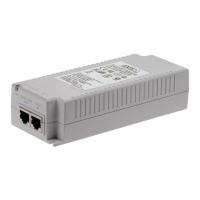
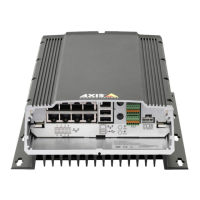
AXIS Camera Station S2216 Mk II Appliance
Manage the built - in switch
3. Enter the start IP address, end IP address, subnet mask, gateway , primary DNS, secondary DNS, lease length, and domain
name.
4. Click Save .
Congure SNMP
1. In the menu bar , go to Settings > SNMP .
2. Enter the server name, contact, and location used for the SNMP connection.
3. If you want to use SNMPV1 or SNMPV2c, select SNMPV1 / SNMPV2c and enter the read community .
4. If you want to use SNMPV3, select SNMPV3 (MD5) and enter the username and password.
Note
Currently we only support MD5 authentication used for SNMP .
5. Click Save .
Maintenance
Update rmware
1. In the menu bar , go to Maintenance > Update rmware .
2. Drag and drop the rmware le or click Browse and navigate to the rmware le.
3. Click Upload .
4. Once the rmware has been updated, reboot the switch.
Reboot the switch
Important
While the switch reboots, all connected devices will temporarily lose connection with the switch including P oE.
1. In the menu bar , go to Maintenance > Reboot switch .
2. Click Reboot and Y es .
3. When the switch reboots after a few minutes, enter your username and password to log in.
Backup the switch's settings
Note
The username and password are included in the backup le.
1. In the menu bar , go to Maintenance > Backup and restore .
2. Click Create a backup le . This creates a backup le in the .bin format and saves it in your Downloads folder .
Restore the switch's settings
Note
T o restore the switch’s settings, you must previously have created a backup le.
1. In the menu bar , go to Maintenance > Backup and restore .
27



 To Next Page
 Loading...