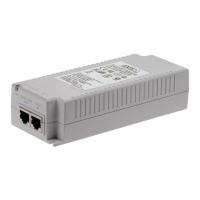
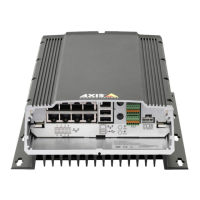
AXIS Camera Station S2216 Mk II Appliance
Manage AXIS Camera Station Pr o user accounts
Scope
Server Select to search for users or groups on the local computer .
Domain
Select to search for Active Directory users or groups.
Selected server When connected to multiple AXIS Camera Station S22 16
Mk II Appliance servers, select a server from the Selected
server drop - down menu.
Congure a user or group
1. Select a user or group in the list.
2. Under Role , select Administrator , Operator , or Viewer .
3. If you selected Operator or Viewer , you can congure the user or group privileges. See .
4. Click Save .
Remove a user or group
1. Select the user or group.
2. Click Remove .
3. In the pop - up dialog, click OK to remove the user or group.
User or group privileges
There are three roles you can give to a user or group. For how to dene the role for a user or group, see .
Administrator - Full access to the entire system, including access to live and recorded video of all cameras, all I/O ports, and
views. This role is required to congure anything in the system.
Operator - Select cameras, views, and I/O ports to get access to live and recorded. An operator has full access to all functionality of
AXIS Camera Station S22 16 Mk II Appliance except system conguration.
Viewer - Access to live video of selected cameras, I/O ports, and views. A viewer doesn’t have access to recorded video or system
conguration.
Cameras
The following access privileges are available for users or groups with the Operator or Viewer role.
Access Allow access to the camera and all camera features.
Video Allow access to live video from the camera.
Audio listen Allow access to listen from the camera.
Audio speak Allow access to speak to the camera.
Manual Recording Allow to start and stop recordings manually .
Mechanical PTZ
Allow access to mechanical PTZ controls. Only available for
cameras with mechanical PTZ.
PTZ priority
Set the PTZ priority . A lower number means a higher priority .
No assigned priority is set to 0 . An administrator has the
highest priority . When a role with higher priority operates a PTZ
camera, others can’t operate the same camera for 1 0 seconds
by default. Only available for cameras with mechanical PTZ and
have Mechanical PTZ selected.
16



 To Next Page