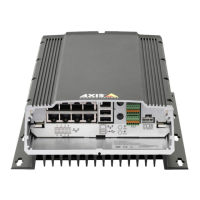
AXIS Camera Station S2216 Mk II Appliance
Manage the built - in switch
Manage the built - in switch
About the built - in switch
The AXIS Camera Station S22 Mk II Appliance Series comes with an integrated P ower over Ethernet (P oE) switch. Y ou can congure
and manage the built - in switch.
The purpose of the switch is to segregate trafc on the network so that security cameras and related trafc managed by the switch
(P oE and the switch uplink ports) are not shared with other networks.
The switch’s power management follows these rules:
• Each port can reserve power according to the connected powered device’s P oE class. Y ou can also manually allocate
power to a port.
• If the actual power consumption for a given port exceeds the reserved power for that port, it will shut down.
• P orts will shut down when the actual power consumption for all ports exceeds the total amount of power that the
power supply can deliver . The ports are then shut down according to the ports priority where a lower port number
means higher priority .
Log in to the switch's management page
1. Go to the menu bar .
- From the web browser , enter the switch’s IP address. By default: 192.168.1 0.1
- From AXIS Recorder T oolbox, go to Switch > Open the switch conguration .
2. Log in with your username and password.
- Y our username is admin
- Y our password is located on a sticker that’s either placed on the device or included in the box content as
a self - adhesive sticker .
Log out from the menu bar to exit the switch’s management page.
Running conguration
The running conguration is the set of settings that are currently active and operational on your network device. It reects your
device's current state and how it's functioning in real time. However , these changes aren't saved if your device reboots.
In contrast, the startup conguration is the set of settings that are saved on your device's non - volatile memory . This conguration
is loaded and applied when your device starts up or restarts.
When you make changes in the web interface and click Save , those changes are applied to the running conguration.
T o save your settings to the startup conguration, use the Save icon in the upper - right corner of the web interface.
If there are unsaved changes in the running conguration, the icon will ash yellow .
Overview
In the menu bar , click Overview .
General information
22



 To Next Page