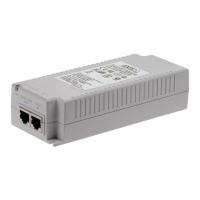
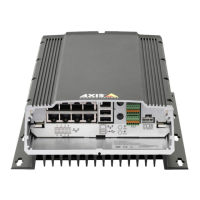
AXIS Camera Station S2216 Mk II Appliance
T r oubleshooting
T r oubleshooting
Reset your server
Y ou can use the server reset button to reset your server . It will take more than one hour to reset your server .
1. P ower off your device.
2. Press and hold the server reset button for 5 seconds. Windows® RE will be started.
3. Select T roubleshoot .
4. Select Reset your PC .
5. Select K eep my les or Remove everything . If you select K eep my les , you need to provide the administrator credentials.
6. Follow the instructions on the screen.
7. The server reboots and starts the procedure to restore Windows® to factory default settings.
T o watch this video, go to the web version of this document.
help.axis.com/?&piaId=90 766§ion=reset - your - server
Reset your server to factory default settings
P erform a system recovery
If the device has had a complete system failure, you must use a recovery image to recreate the Windows® system. T o download the
AXIS Network Video Recorder Recovery Kit, contact Axis technical support and supply the serial number of your device.
1. Download the AXIS Network Video Recorder Recovery Kit and AXIS Network Video Recorder Recovery: ISO to USB T ool.
2. Insert a USB drive into your computer .
- Use a USB drive with a minimum of 16 GB .
- The USB drive will be formatted, and all existing data will be erased.
3. Run the AXIS Network Video Recorder Recovery: ISO to USB T ool and follow the onscreen instructions.
Writing data to the USB drive takes approximately 1 0 to 15 min. Don’t remove the USB drive until the process is complete.
4. After the AXIS Network Video Recorder Recovery: ISO to USB T ool is complete, take the USB drive and plug it into
your device.
5. Start your device.
6. When you see the Axis splash screen, press F12.
7. Click UEFI: USB Drive .
8. Navigate to your USB drive and press ENTER. The system boots into the AXIS Network Video Recorder Recovery Kit.
32



 To Next Page